Photo too dark? Colors too flat? Need a quick blur? ImgNeo Image Filters lets you adjust brightness, contrast, saturation, blur, and more — right in your browser, no signup, no software.
Why Adjust Image Filters?
A few slider tweaks can rescue a bad photo or elevate a good one. Brighten underexposed shots, boost contrast for punch, desaturate for a moody look, or blur backgrounds for focus. You don’t need Photoshop for basic adjustments — a browser filter tool is enough for 90% of everyday edits.
How to Apply Filters to Your Image
Step 1: Open the Image Filters Tool
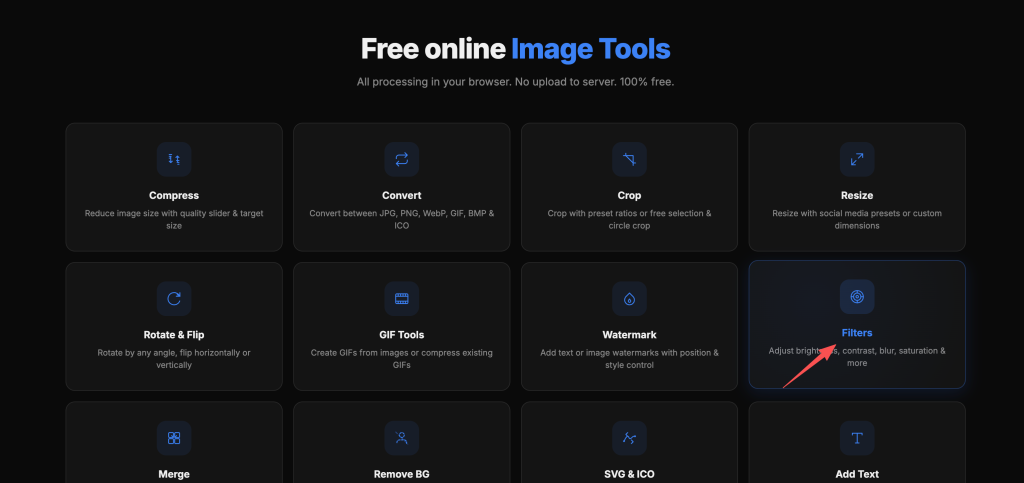
Go to imgneo.com/filters. No account needed.
Step 2: Upload Your Image
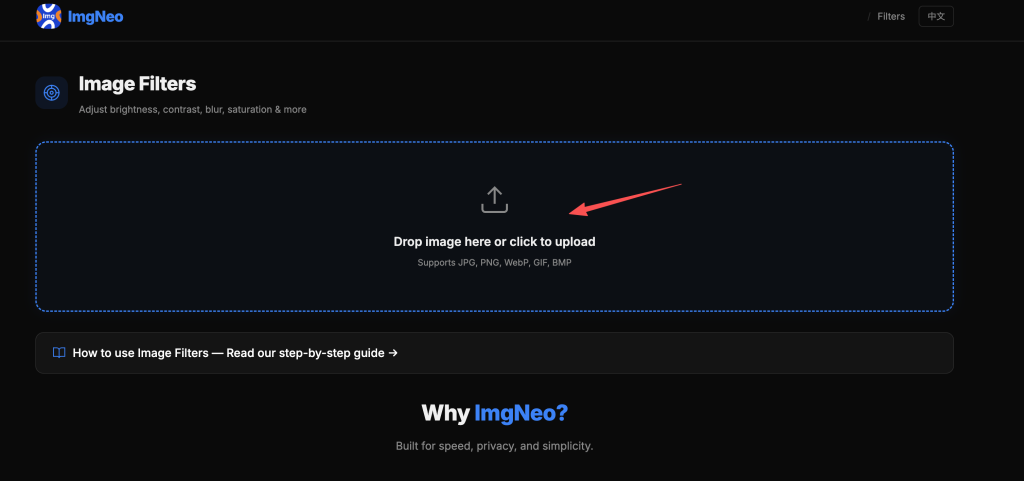
Drag and drop your photo, or click to browse. Supports JPG, PNG, WebP, GIF, BMP.
Step 3: Adjust the Filters
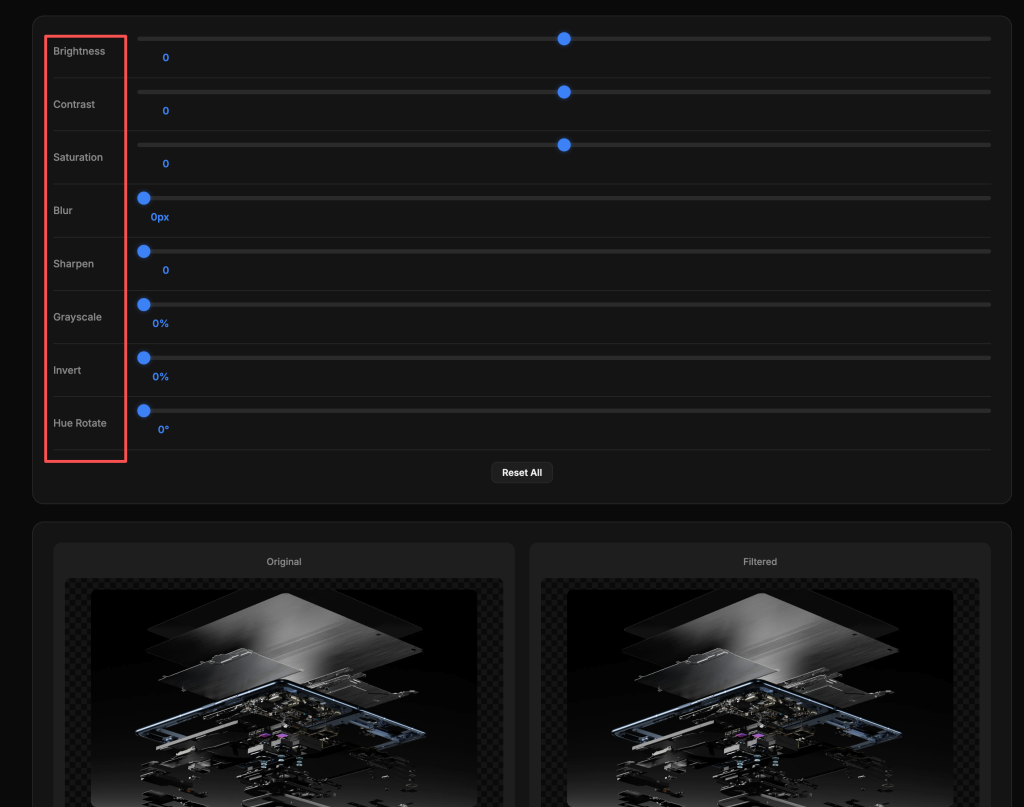
Use the sliders to fine-tune each setting. Changes preview in real time.
| Filter | What It Does | When to Increase | When to Decrease |
|---|---|---|---|
| Brightness | Overall lightness/darkness | Underexposed, dark photos | Overexposed, washed out |
| Contrast | Difference between light and dark | Flat, gray-looking photos | Harsh shadows, too punchy |
| Saturation | Color intensity | Dull, faded colors | Overly vivid, want B&W feel |
| Blur | Softens the image | Background blur, hide details | Never (sharp is usually better) |
| Grayscale | Removes all color | Black & white artistic look | You want color |
Quick recipes for common fixes:
| Problem | Fix |
|---|---|
| Dark indoor photo | Brightness +30, Contrast +10 |
| Flat outdoor shot | Contrast +20, Saturation +15 |
| Too vivid / oversaturated | Saturation -20 to -30 |
| Moody Instagram feel | Saturation -30, Contrast +15, Brightness -5 |
| Product photo pop | Contrast +15, Brightness +5, Saturation +10 |
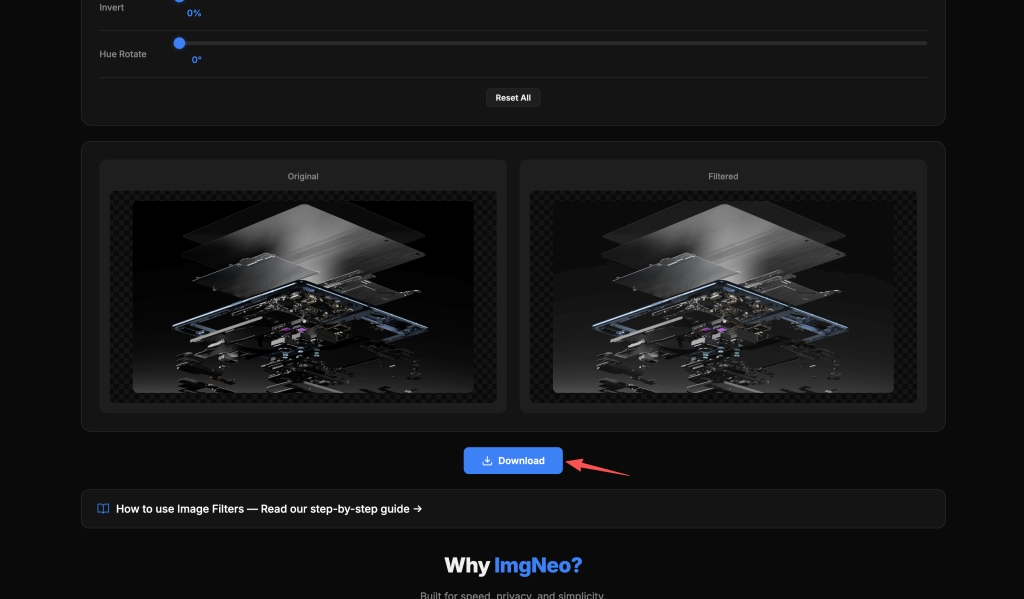
Step 4: Download the Result
Click download. The filtered image saves to your device — everything runs locally in your browser.
When to Use Each Filter
Brightness — The most basic fix. Indoor shots, backlit subjects, and cloudy-day photos almost always need a brightness boost. Don’t overdo it — pushing brightness too high reveals noise and washes out highlights.
Contrast — Makes photos “pop.” Low contrast looks flat and lifeless; high contrast looks dramatic. Product photos and landscapes benefit from a moderate contrast boost. Portraits can look harsh with too much contrast.
Saturation — Controls how vivid colors appear. Zero saturation = black and white. Boosting saturation makes colors richer but can make skin tones look unnatural. For a cinematic feel, try slightly desaturating instead.
Blur — Useful for softening backgrounds, hiding sensitive info, or creating a dreamy effect. Not typically a “fix” — more of a creative tool. Gaussian blur is the standard; the tool applies it uniformly.
Grayscale — Strips all color information. Useful for dramatic portraits, architectural photos, or when color is distracting. Converting to true B&W (not just desaturating) often looks better with a contrast boost afterward.
FAQ
Do filters reduce image quality?
Brightness, contrast, and saturation adjustments are mathematically lossless in terms of pixel count. However, extreme adjustments (especially very high brightness or contrast) can reveal compression artifacts or noise that was already in the image. PNG output preserves quality; JPG re-encoding adds minor loss.
Can I apply multiple filters at once?
Yes — adjust multiple sliders before downloading. They all apply together in a single pass, which is better than applying filters one at a time (each pass would degrade quality slightly).
Can I undo a filter?
There’s no undo within the tool, but you can always re-upload the original image and start over. The original file on your device is never modified.
Is this the same as Instagram filters?
Not exactly. Instagram-style filters are preset combinations of adjustments (often with color tinting and vignettes). This tool gives you individual control over each parameter, so you can create any look — including ones that mimic Instagram filters — with more precision.
What’s the difference between saturation and brightness?
Brightness changes how light or dark the image is overall. Saturation changes how intense the colors are. A bright, desaturated image looks washed out. A dark, saturated image looks rich and moody.
More image tools from ImgNeo: Compress Images · Add Watermark · Add Text to Image · Remove Background · Convert Formats