Photo sideways? Selfie mirrored? ImgNeo Rotate & Flip fixes image orientation instantly — right in your browser, no signup, no software.

Why Rotate or Flip an Image?
Camera orientation sensors aren’t perfect — sometimes photos import sideways. Front-facing cameras mirror text and logos. Scanned documents land upside down. A quick rotate or flip is the simplest fix.
How to Rotate and Flip Images Online
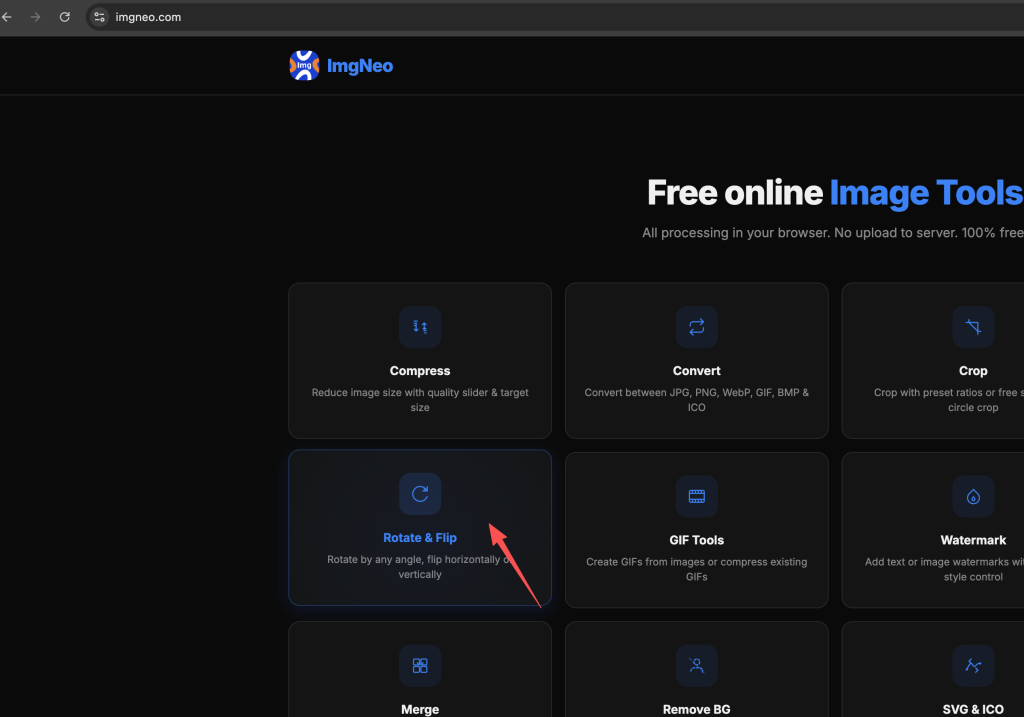
Step 1: Open the Rotate & Flip Tool
Go to imgneo.com/rotate-flip. No account needed.
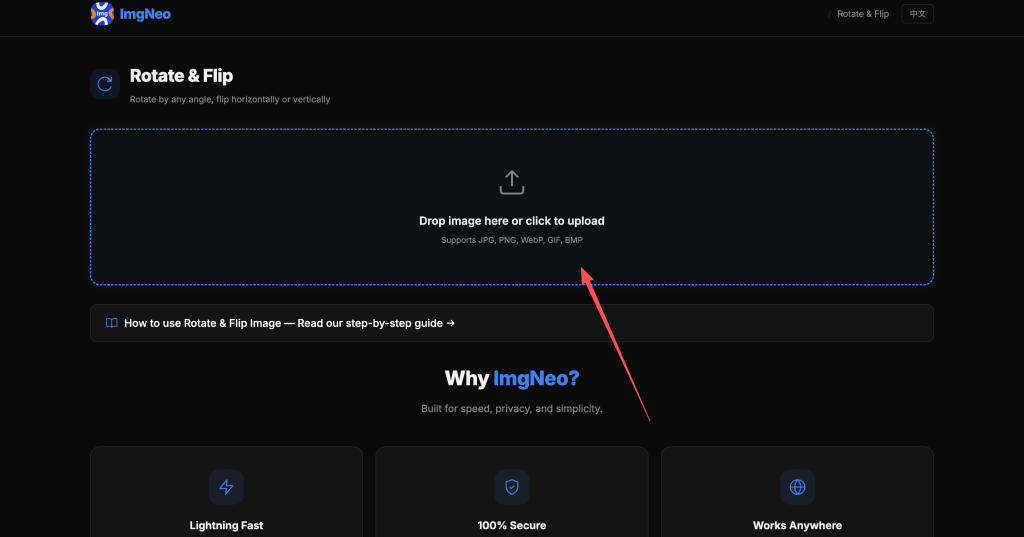
Step 2: Upload Your Image
Drag and drop your photo, or click to browse. Supports PNG, JPG, WebP, BMP, and more.
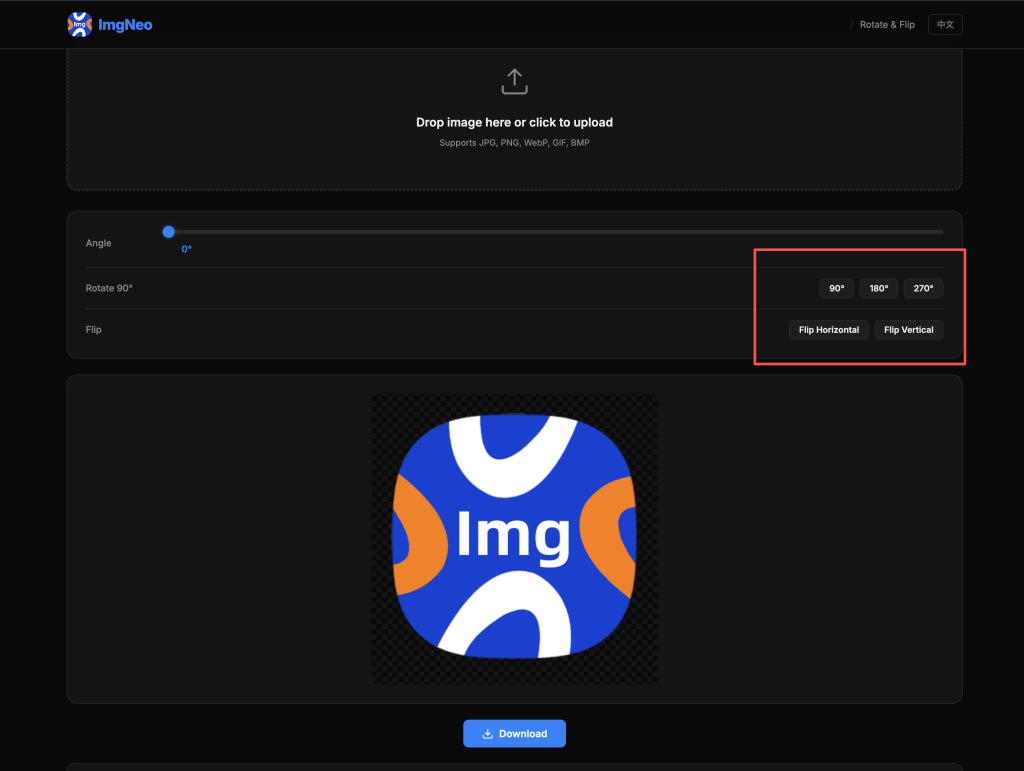
Step 3: Choose Your Action
表格
| Action | What It Does | When to Use |
|---|---|---|
| Rotate 90° clockwise | Turns image right | Photo imported sideways |
| Rotate 90° counter-clockwise | Turns image left | Scanned document upside down |
| Rotate 180° | Flips image upside down | Photo completely inverted |
| Flip horizontal | Mirrors left↔right | Fix mirrored selfie text |
| Flip vertical | Mirrors top↔bottom | Create reflection effects |
You can apply multiple rotations in a row — each click adds another 90° turn.
Step 4: Download the Result
Click download. The rotated or flipped image saves to your device — everything runs locally in your browser.
Common Scenarios
Sideways photos from camera — Some cameras (especially phone cameras held horizontally) save photos with wrong EXIF orientation. Rotate 90° in the right direction to fix it.
Mirrored selfie text — Front cameras flip the image, so text on shirts, signs, or logos appears backwards. Flip horizontal to restore the correct reading direction.
Scanned documents — Scanners sometimes output pages upside down or rotated. A quick 180° or 90° rotation gets them readable.
Creative mirrors — Flipping an image horizontally creates a mirror effect. Useful for creating symmetrical designs or matching the direction a subject faces.
Rotate vs. Flip — What’s the Difference?
Rotating turns the image around its center point — like spinning a photo on a table. Content moves to a new position but isn’t mirrored.
Flipping reflects the image across an axis — like looking in a mirror. Horizontal flip swaps left and right. Vertical flip swaps top and bottom.
FAQ
Does rotating reduce image quality?
No. Rotation and flipping are lossless operations — every pixel is preserved, just rearranged. The output has the same quality as the original.
Why is my photo sideways in the first place?
Most cameras store orientation info in EXIF metadata, and most viewers read it correctly. But some programs ignore EXIF, or the metadata gets stripped when uploading. Rotating the image permanently fixes the orientation regardless of EXIF.
Can I rotate by a custom angle?
The tool rotates in 90° increments (90°, 180°, 270°). For fine angular adjustments, most photos don’t need them — if you’re straightening a tilted horizon, that’s a different operation.
Will the file size change?
Negligibly. Since no recompression happens for PNG, the file stays nearly identical. JPG may have minor size variation due to rounding in re-encoding, but the difference is trivial.
Does it work on mobile?
Yes. Works in Safari, Chrome, and Firefox on iOS and Android.
More image tools from ImgNeo: Compress Images · Resize Images · Crop Images · Convert Formats · Add Watermark