Need to put words on a photo? ImgNeo Add Text to Image lets you add custom text with font, size, color, opacity, rotation, and position control — right in your browser, no signup, no software.
Why Add Text to an Image?
Social media posts with text get more engagement. Tutorial screenshots need labels. Product images need price tags. Memes need captions. Birthday cards need greetings. Instead of opening Photoshop for a simple text overlay, do it in seconds online.
How to Add Text to an Image
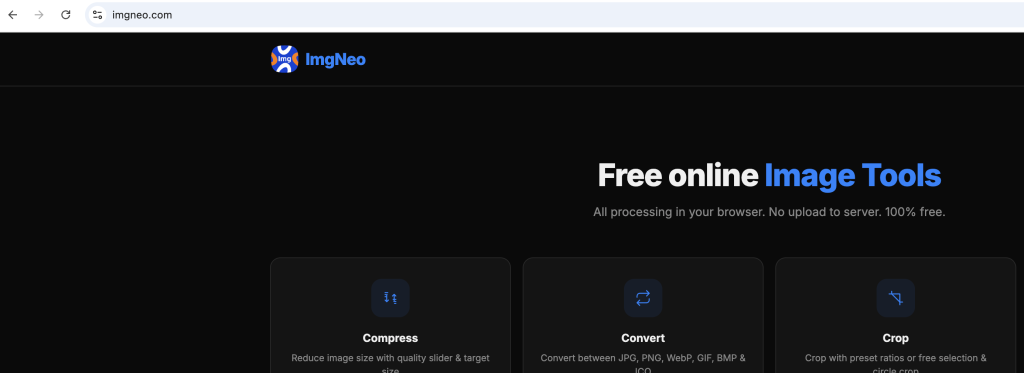
Step 1: Open the Add Text Tool
Go to imgneo.com/add-text. No account needed.
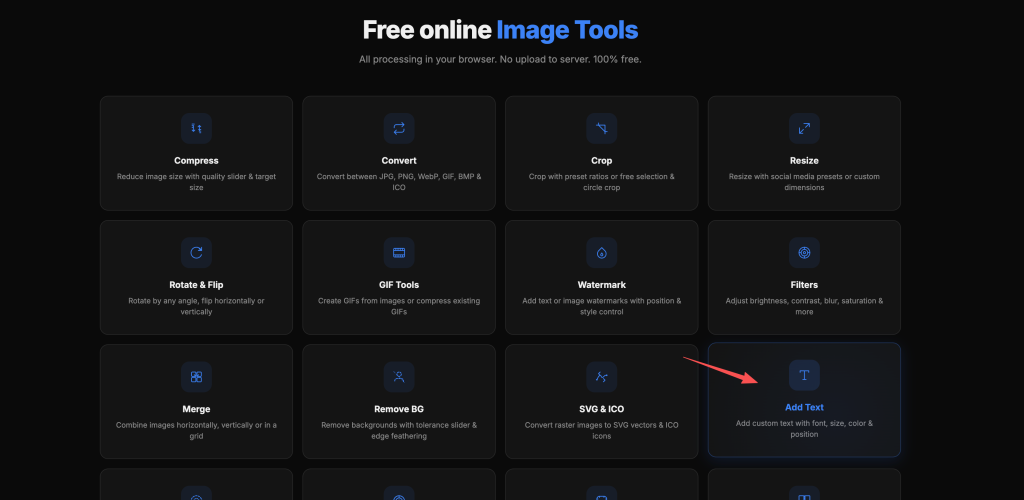
Step 2: Upload Your Image
Drag and drop your photo, or click to browse. Supports JPG, PNG, WebP, GIF, BMP.
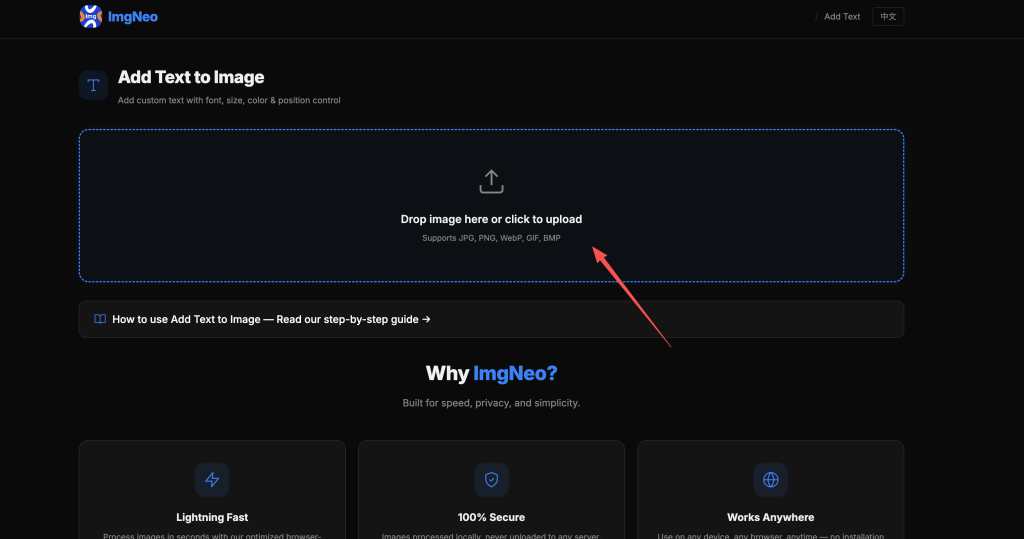
Step 3: Type Your Text
Enter the text you want to appear on the image. Keep it short — a few words or a sentence work best.
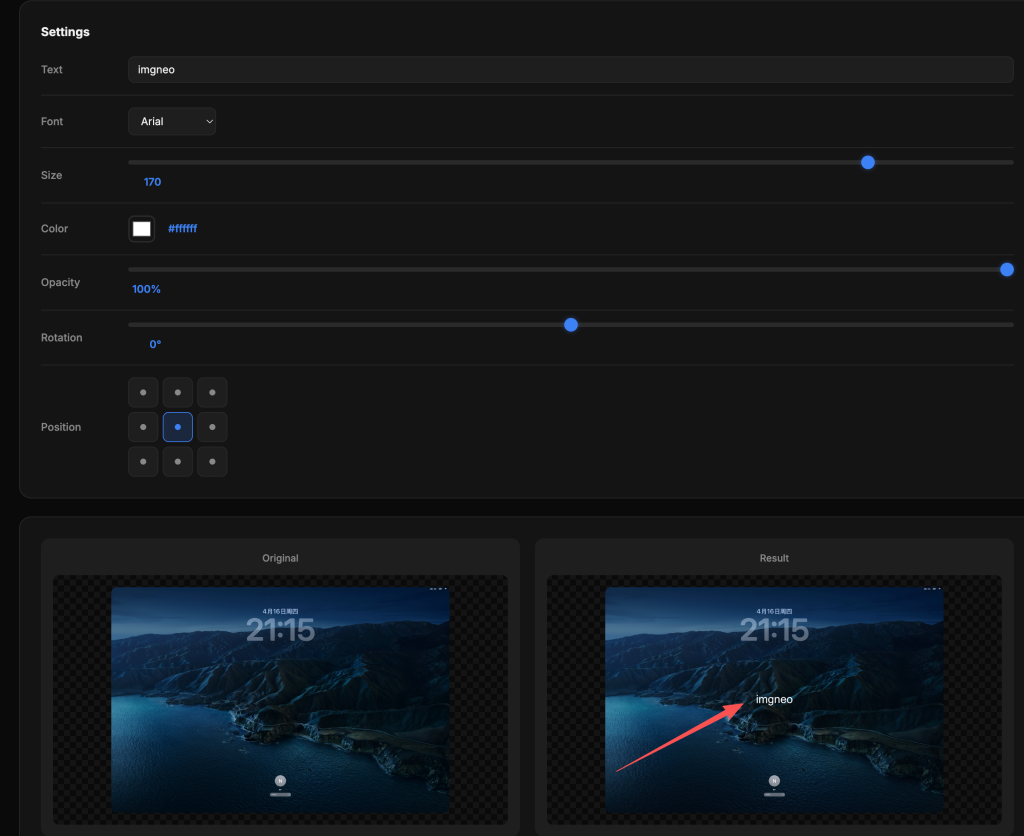
Step 4: Customize the Text Style
表格
| Setting | What It Does | Tips |
|---|---|---|
| Font | Text typeface (Arial, Verdana, Impact, Courier) | Impact for bold headers; Courier for code/tech feel |
| Size | Font size in pixels | 24–36 for subtle labels; 48–72 for headlines |
| Color | Text color | White with lower opacity works on most photos; use dark text on light areas |
| Opacity | Text transparency | 100% for solid text; 70–80% for a softer overlay feel |
| Rotation | Text angle | 0° for normal; -15° to 15° for a casual tilt; 45° for diagonal stamps |
| Position | Where text appears on the image | Drag to place; bottom-center for captions, center for watermarks |
Step 5: Preview and Download
The result preview updates in real time. Check placement and legibility, then click “Download Image.”
Text Placement Tips for Common Uses
表格
| Use Case | Position | Size | Opacity | Font |
|---|---|---|---|---|
| Social media caption | Bottom-center | 36–48 | 100% | Impact or Arial |
| Photo watermark | Center, diagonal | 48–64 | 30–50% | Arial |
| Meme text | Top & bottom | 48–72 | 100% | Impact |
| Tutorial label | Near the element | 24–32 | 100% | Arial or Verdana |
| Product price tag | Bottom-right | 32–48 | 100% | Impact |
| Copyright notice | Bottom-left | 18–24 | 60–80% | Arial |
| Date stamp | Top-right | 20–28 | 80–100% | Courier |
Making Text Readable on Any Photo
The biggest challenge with text on images is contrast — your text can disappear into a busy background.
- Add a shadow or outline — If your tool supports it, a dark outline around light text (or light outline around dark text) ensures readability regardless of background.
- Use semi-transparent background — Place a dark rectangle (40–60% opacity) behind your text for a clean caption bar effect.
- Pick the right color — White text works on most photos. On bright/snowy photos, switch to dark text.
- Keep it short — Long paragraphs on photos are hard to read. Stick to a headline and maybe one sub-line.
FAQ
Can I add multiple text elements?
Currently one text element per pass. For multiple labels, download the first result and re-upload it to add the next piece of text.
Can I use my own fonts?
The tool offers a built-in font selection (Arial, Verdana, Impact, Courier). Custom fonts aren’t supported yet, but these four cover most needs — Impact for bold, Courier for technical, Arial and Verdana for clean readability.
Does adding text reduce image quality?
The text is rendered onto the image at full resolution. PNG output is lossless. JPG re-encoding may add minor compression, but at default quality settings it’s negligible.
Can I move the text after placing it?
Yes — adjust the position control to reposition the text before downloading. The preview updates in real time.
What’s the difference between this and the watermark tool?
The watermark tool is designed for repeated protection stamps — it emphasizes opacity and diagonal placement. The add text tool gives you full creative control over font, size, color, and position for any kind of text overlay — captions, labels, memes, or watermarks.
Is my image uploaded to a server?
No. All processing happens in your browser. Your images never leave your device.
More image tools from ImgNeo: Add Watermark · Image Filters · Remove Background · Crop Images · Convert Formats