Need to cut out the unwanted edges of a photo? ImgNeo Image Cropper lets you crop images to any dimension right in your browser — free, no signup, no software to install.
Why Crop an Image?
Cropping removes distractions, tightens composition, and resizes photos for specific platforms. Whether you’re prepping a profile picture, fitting a product shot, or cutting out background clutter — cropping is the quickest edit you can make.
How to Crop an Image Online
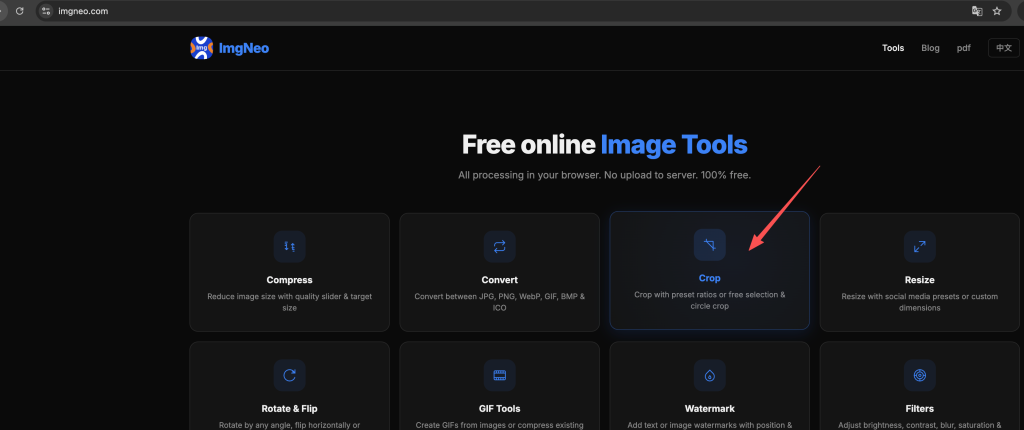
Step 1: Open the Image Cropper
Go to imgneo.com/crop. The tool loads instantly — no account needed.
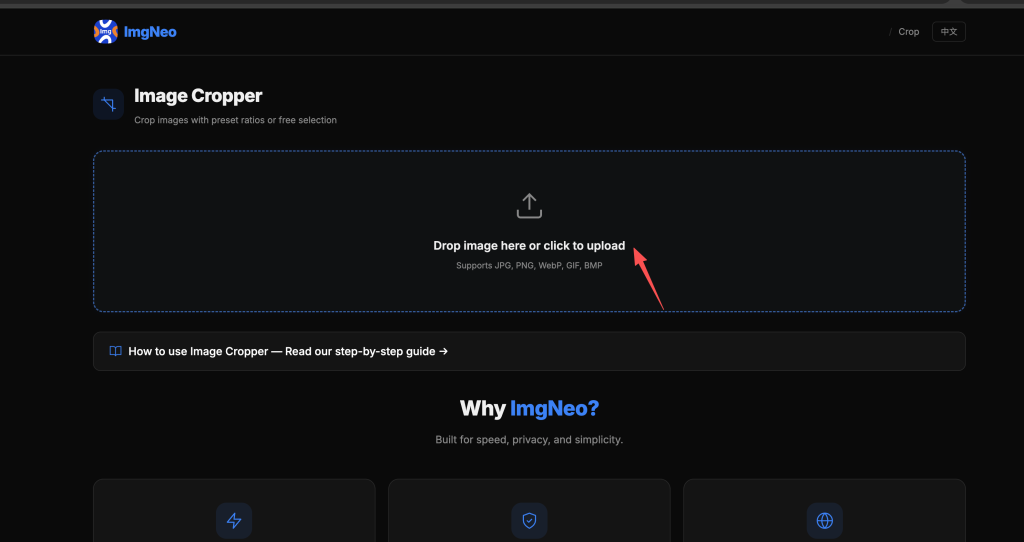
Step 2: Upload Your Image
Drag and drop your photo onto the page, or click to browse. Supports PNG, JPG, WebP, BMP, and other common formats.
Step 3: Select the Crop Area
Click and drag on the image to define the region you want to keep. Use the handles to fine-tune the selection.
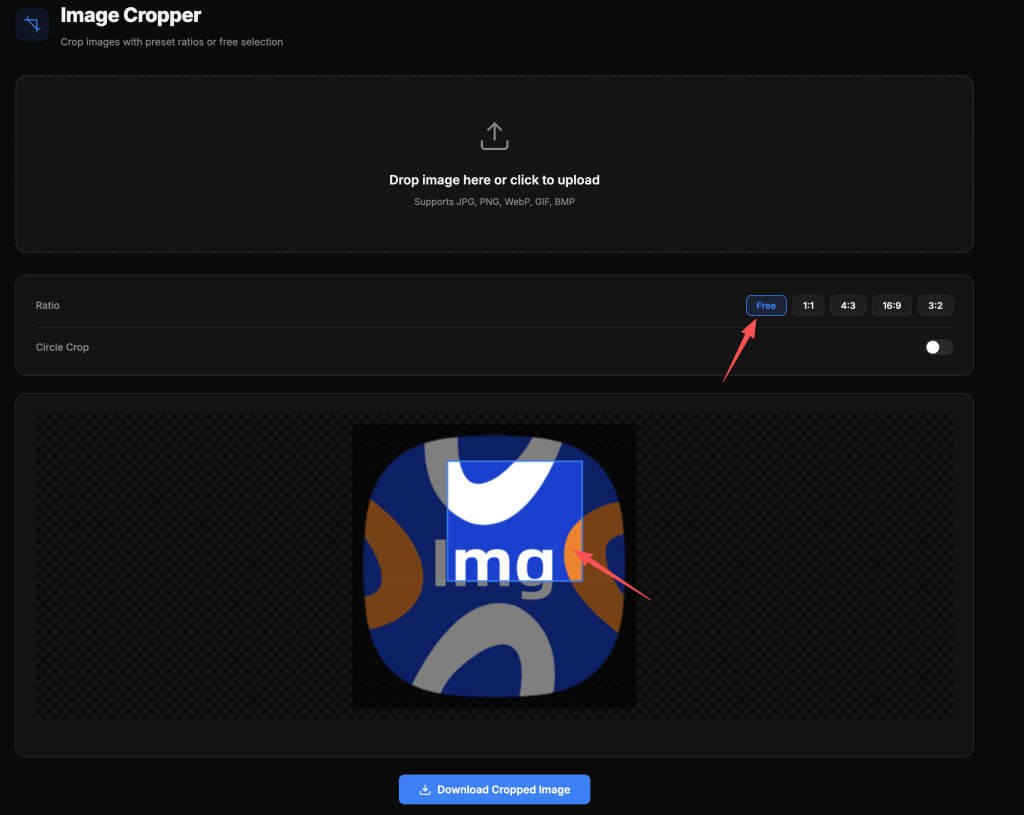
Preset aspect ratios are available for common needs:
表格
| Preset | Ratio | Used For |
|---|---|---|
| Free | Any | Custom crops |
| 1:1 | Square | Instagram posts, profile photos |
| 16:9 | Widescreen | YouTube thumbnails, presentations |
| 4:3 | Standard | Traditional photos, slides |
| 3:2 | Classic | DSLR default, prints |
| 9:16 | Vertical | Stories, reels, phone wallpapers |
Step 4: Apply and Download
Hit the crop button, then download the result. The cropped image saves to your device — everything runs locally in your browser.
Common Crop Scenarios
Social media profile photos — Most platforms want a 1:1 square. Use the 1:1 preset, position your face in the center, and download.
YouTube thumbnails — 16:9 ratio is mandatory. Upload your image, select 16:9, position the key visual, and crop.
Product photos — Remove distracting backgrounds by cropping tight around the product. Free ratio gives you full control.
Print preparation — Standard print sizes use specific ratios (4×6 = 3:2, 5×7 ≈ 7:5, 8×10 = 4:5). Pick the matching preset to avoid awkward stretching later.
FAQ
Does cropping reduce image quality?
Cropping reduces resolution because you’re keeping fewer pixels. If the remaining area is still large enough for your purpose (e.g., at least 1080px wide for web), the quality will be fine. For print, make sure the cropped result meets the required DPI.
Can I crop to a specific pixel size?
Use the free ratio mode and drag to your desired area. The selection displays the pixel dimensions in real time so you can hit your target.
What’s the difference between cropping and resizing?
Cropping cuts away parts of the image — you keep a smaller area at full resolution. Resizing scales the entire image up or down — everything stays, but pixel dimensions change. Often you crop first, then resize.
Is there a file size limit?
No hard limit. Since processing happens in your browser, large files may take a moment but will work fine.
Does it work on mobile?
Yes. The cropper works in mobile browsers — pinch to zoom, drag to adjust the selection.
More image tools from ImgNeo: Compress Images · Resize Images · Convert Formats · Rotate & Flip · Add Watermark