Need to give a photo soft rounded corners instead of sharp square edges? ImgNeo Round Corners adds adjustable rounded corners with transparent or colored background — right in your browser, no signup, no software.
Why Round Image Corners?
Sharp corners feel harsh. Rounded corners feel modern, friendly, and polished — that’s why iOS, Android, and most modern UI frameworks use them everywhere. If you’re placing images on a website, in a presentation, or on social media, rounded corners instantly make them look more refined.
How to Round Image Corners
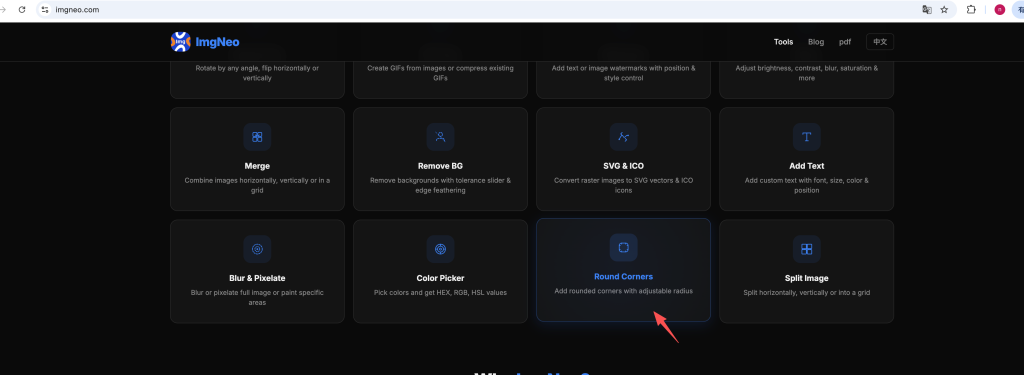
Step 1: Open the Round Corners Tool
Go to imgneo.com/round-corners. No account needed.
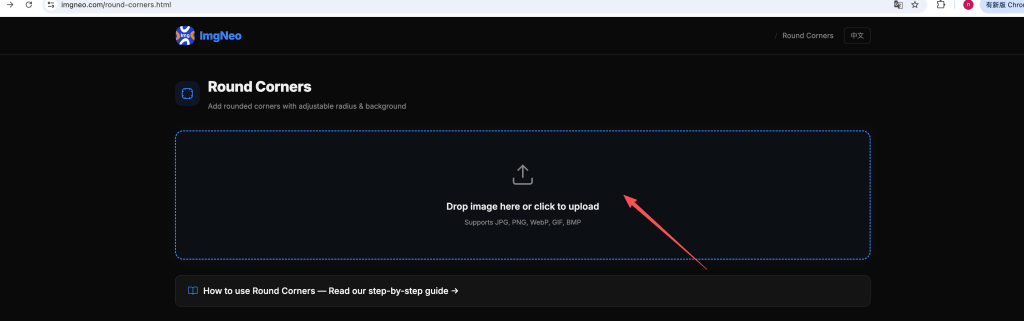
Step 2: Upload Your Image
Drag and drop your photo, or click to browse. Supports JPG, PNG, WebP, GIF, BMP.
Step 3: Set the Corner Radius
The Corner Radius slider controls how rounded the corners are:
表格
| Radius | Effect | Best For |
|---|---|---|
| 0px | No rounding (original square) | — |
| 8–16px | Subtle rounding | Blog images, inline photos |
| 20–40px | Noticeable soft corners | Profile cards, thumbnails |
| 50–100px | Very rounded | App icons, feature cards |
| 50% (of half the shorter side) | Perfect circle (square images only) | Avatars, app icons |
The larger the image, the larger the radius you’ll need for a visible effect. A 30px radius looks different on a 300px thumbnail vs. a 2000px photo.
Step 4: Choose the Background
The area outside the rounded corners can be:
- Transparent — The corners become transparent (output is PNG). Best for placing the image on any background without a visible white box.
- Custom color — Fill the corner areas with a solid color. Useful if you need a specific background color (white, black, brand color).
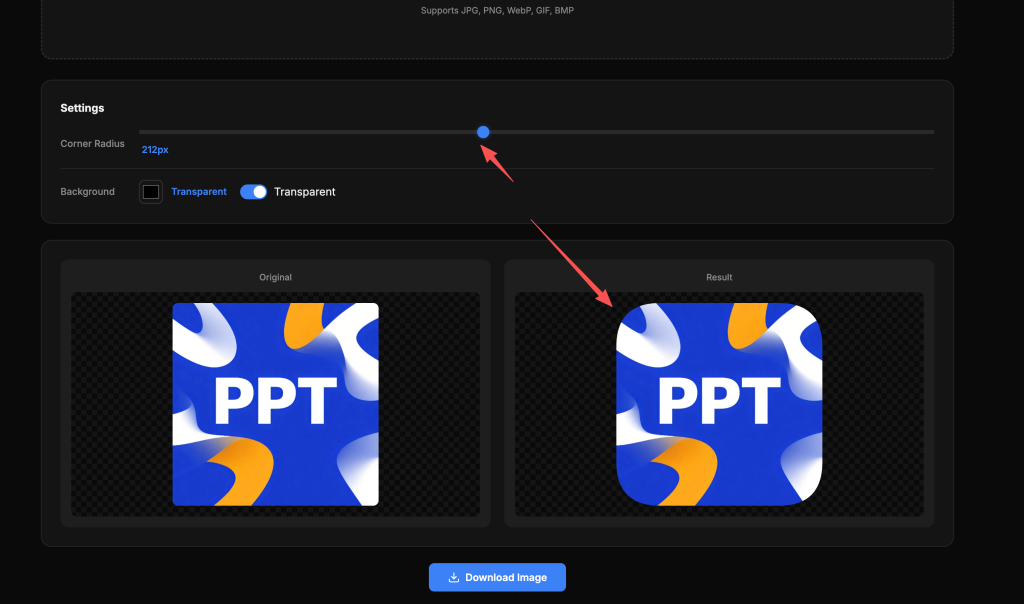
Step 5: Download the Result
Click “Download Image.” The result saves as a PNG (for transparency) or your chosen format — everything runs locally in your browser.
Common Use Cases
App icons — iOS and Android both use rounded square icons. Set radius to 20–25% of the image width for the standard app icon shape.
Profile avatars — Many platforms display avatars as circles. Use 50% radius on a square image to create a perfect circle.
Website card images — Modern card layouts use rounded corners (8–16px) for a clean, contemporary look. Match the radius to your site’s border-radius CSS value.
Social media posts — Rounded corners help your image stand out in a feed of sharp-cornered photos. Try 20–30px for a noticeable but not extreme effect.
Presentation slides — Round the corners of product shots and screenshots to make them feel more designed and less like raw screenshots.
Matching Corner Radius to Your Website
If your website uses a specific border-radius, match it in the tool:
表格
| CSS border-radius | Pixel equivalent (1200px image) | Visual feel |
|---|---|---|
4px | 4px | Barely there |
8px | 8px | Subtle, clean |
12px | 12px | Modern, friendly |
16px | 16px | Soft, approachable |
24px | 24px | Very rounded, playful |
50% | 600px (half width) | Circle |
For responsive sites, you may want to round the largest version — smaller versions will still look rounded proportionally.
FAQ
Does rounding corners crop my image?
No. The full image content is preserved — the corners are just replaced with the background color (or transparency). Nothing in the rectangular area is removed; the corners are simply hidden behind the rounded mask.
Can I round only specific corners?
Currently all four corners are rounded equally. For individual corner control, you’d need a more advanced image editor.
Why is my output a PNG file?
PNG supports transparency. When you choose a transparent background, the corner areas need to be truly transparent (not white), which requires PNG. If you choose a solid background color, the output can still be PNG for quality, or JPG if file size matters more.
Can I make a circle from a non-square image?
A perfect circle requires equal width and height. If your image isn’t square, crop or resize it to a square first, then apply 50% radius. Rectangular images with 50% radius become rounded rectangles (stadium/pill shape), not circles.
Will the rounded image look good on any background?
If you chose transparent background, yes — the transparent corners blend into whatever’s behind them. If you chose a white background, it’ll only look clean on white or light surfaces.
Is my image uploaded to a server?
No. All processing happens in your browser. Your images never leave your device.
More image tools from ImgNeo: Crop Images · Resize Images · Remove Background · Add Watermark · Convert Formats