Image files too large? Slow uploads, can’t send them, eating up your phone storage? ImgNeo’s image compressor lets you shrink JPG, PNG, WebP, GIF, and BMP files right in your browser — no server uploads, instant results with before-and-after preview.
Why Compress Images?
- Faster websites: A 5MB original compressed to 200KB looks nearly identical but loads 25x faster
- Save storage space: Compressing hundreds of photos on your phone can free up several GB
- Meet upload limits: Many platforms restrict image size (WeChat 5MB, email 25MB) — compressed files pass easily
- Better SEO rankings: Page load speed is a Google ranking factor, and image compression is the most direct optimization
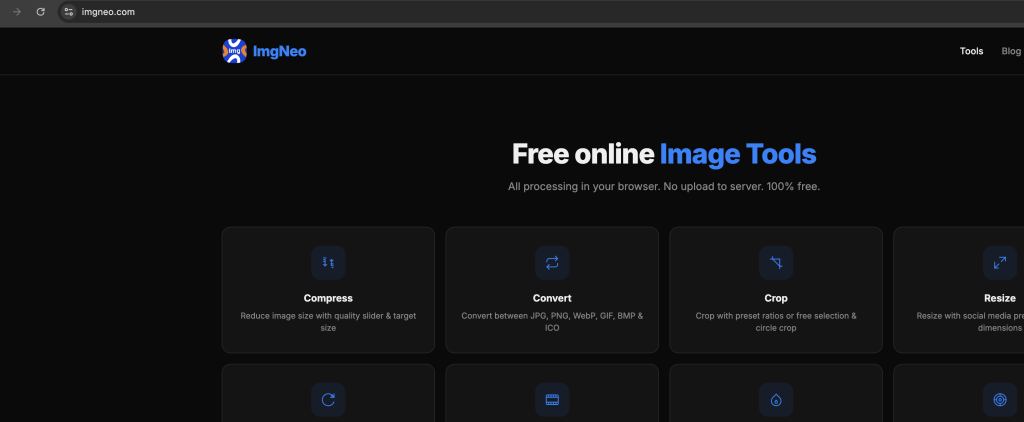
How to Compress Images with ImgNeo
Step 1: Open the Compressor
Go to ImgNeo Image Compressor. No signup required.
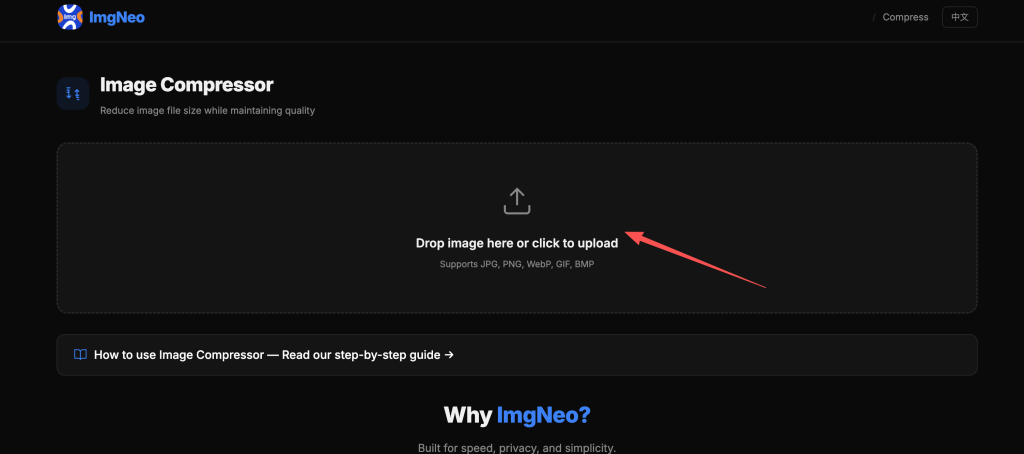
Step 2: Upload Your Image
Click the upload area to select an image, or drag and drop it directly. Supports JPG, PNG, WebP, GIF, and BMP formats.
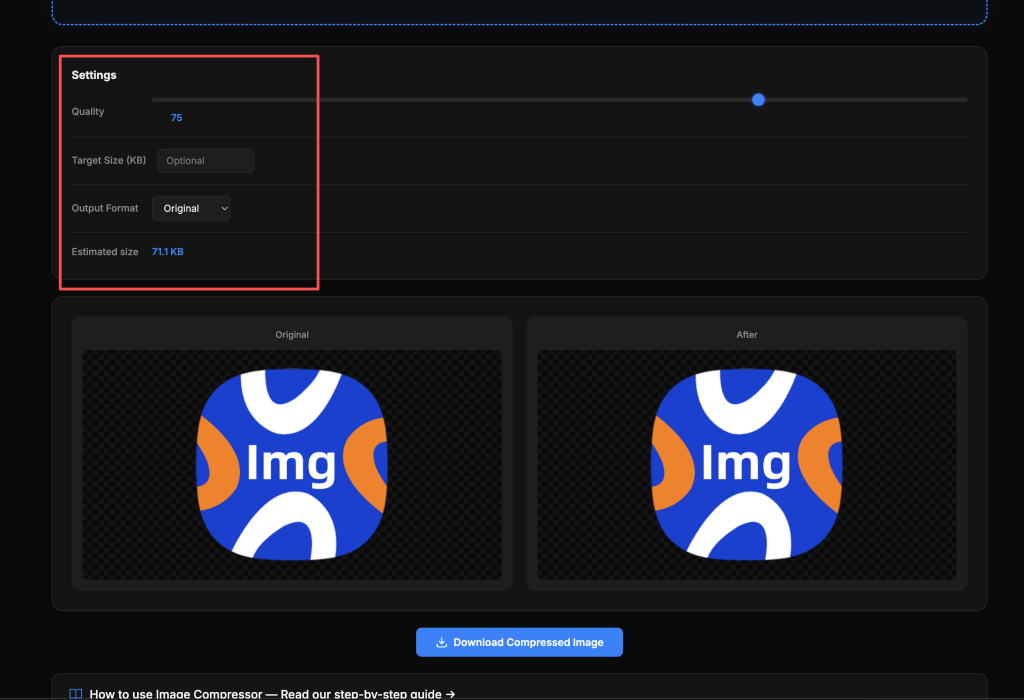
Step 3: Adjust Compression Settings
After upload, you’ll see a side-by-side preview with three adjustable parameters:
Quality
- Slider range 1-100, default 75
- Lower values = smaller files, more quality loss
- 60-80 is the sweet spot — barely noticeable quality difference
Target Size
- Enter your desired file size in KB
- The tool automatically adjusts quality to hit the target
- For example, entering 200 will compress the image to approximately 200KB
Output Format
- Original: Keep the current format
- JPG: Best for photos, highest compression ratio
- PNG: Choose this when you need transparency
- WebP: Most modern format — 25-35% smaller than JPG at the same quality
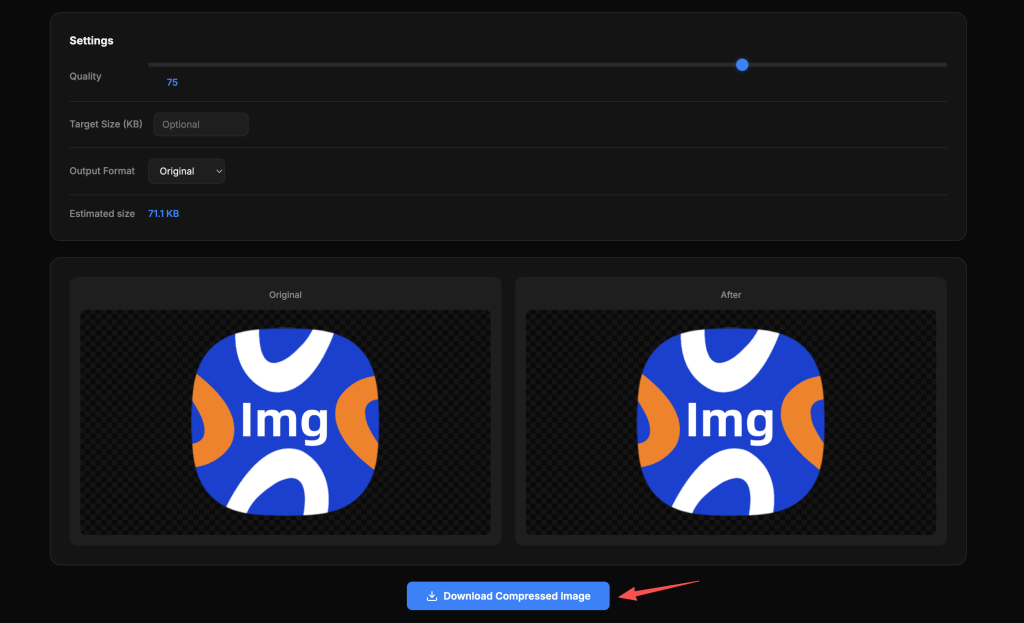
Step 4: Compare Results
The tool displays the original and compressed versions side by side, with file sizes shown below. Confirm the quality is acceptable before downloading.
Step 5: Download the Compressed Image
Click “Download Compressed Image.” The filename automatically adds a -compressed suffix.
Compression Characteristics by Format
JPG Compression
Best for photographic images. JPG is already a lossy format, so reducing the quality parameter significantly shrinks file size. A 5MB landscape photo at quality 60 compresses to roughly 300KB with barely visible detail loss.
PNG Compression
PNG is lossless, so compression gains are limited. For screenshots or simple graphics, converting to WebP works much better. If the image has a transparent background, you must keep PNG format.
WebP Compression
Google’s modern format — 25-35% smaller than JPG at the same quality, and far smaller than PNG. Browser support is now excellent (Chrome, Firefox, Edge, Safari 16+). Highly recommended for web images.
GIF Compression
GIF is mainly for animations, where compression gains are limited. For static GIFs, converting to PNG or WebP can reduce size dramatically.
How to Choose the Quality Setting
表格
| Quality | Best For | Visual Impact |
|---|---|---|
| 80-100 | Professional photography, printing | Nearly lossless |
| 60-80 | Web display, social media | Slight, hard to notice |
| 40-60 | Thumbnails, previews | Visible but acceptable |
| 1-40 | Extreme compression scenarios | Noticeable blur and artifacts |
For most use cases, 60-80 is the most practical range.
How to Use Target Size
Use this when you know the file size limit of your target platform:
- WeChat image limit 5MB → enter 5000
- Web hero image recommended under 200KB → enter 200
- Avatar upload limit 100KB → enter 100
The tool uses binary search to automatically adjust the quality parameter, precisely approaching the target size (±5% tolerance).
Why Use ImgNeo for Image Compression?
- Real-time comparison: Original and compressed versions displayed side by side — what you see is what you get
- Precise target sizing: Specify a KB value and the tool auto-adjusts, no trial and error
- Format conversion: Change output format while compressing
- Completely free: No usage limits, no file size restrictions
- Privacy first: All processing happens locally in your browser — your images never leave your device
- No registration: Open and use instantly
Frequently Asked Questions
The compressed image looks noticeably worse — what should I do?
Increase the Quality value. Below 60, quality loss becomes visible. For photos, we recommend staying at 60 or above. You can also try WebP format — better quality at the same file size.
PNG compression isn’t reducing the size much?
PNG is lossless by nature, so there’s limited room for compression. Try converting to WebP instead — typically 50%+ size reduction. However, if you need transparency, you must keep PNG.
Can I compress multiple images at once?
The current version processes one image at a time. For batch compression, process files individually.
Can I restore the original after compression?
No. Lossy compression is one-directional — lost detail cannot be recovered. Always keep the original file and save the compressed version separately.
Does it support RAW formats?
No (CR2, NEF, DNG, etc. are not supported). Convert to JPG or PNG first, then compress.
More Image Tools
- Resize Image – Change image dimensions and resolution
- Convert Format – Convert between image formats (JPG/PNG/WebP/SVG)
- Add Watermark – Batch add watermarks to images
- Crop Image – Freely crop image areas
- Remove Background – One-click background removal