Need to cut out a subject from its background? ImgNeo Remove Background strips backgrounds with a tolerance slider and edge feathering — right in your browser, no signup, no software.

Why Remove a Background?
Transparent backgrounds are essential for product listings, logos on colored pages, photo composites, and presentations. Instead of manually tracing edges in Photoshop, a color-based removal tool handles it in seconds — especially when the background is a solid or near-solid color.
How to Remove an Image Background
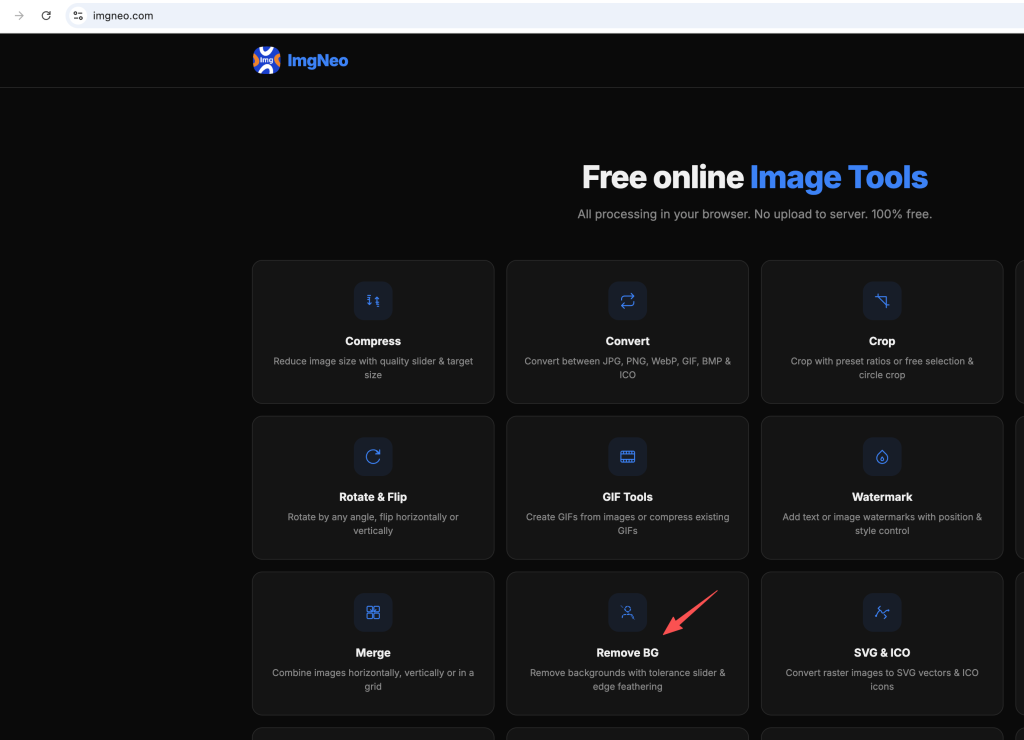
Step 1: Open the Remove Background Tool
Go to imgneo.com/remove-bg. No account needed.
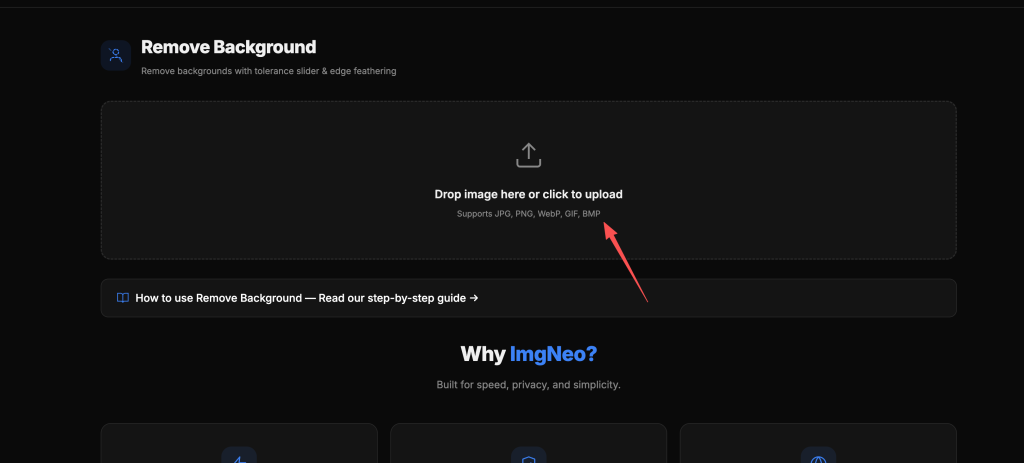
Step 2: Upload Your Image
Drag and drop your photo, or click to browse. Supports JPG, PNG, WebP, GIF, BMP.
Step 3: Pick the Background Color
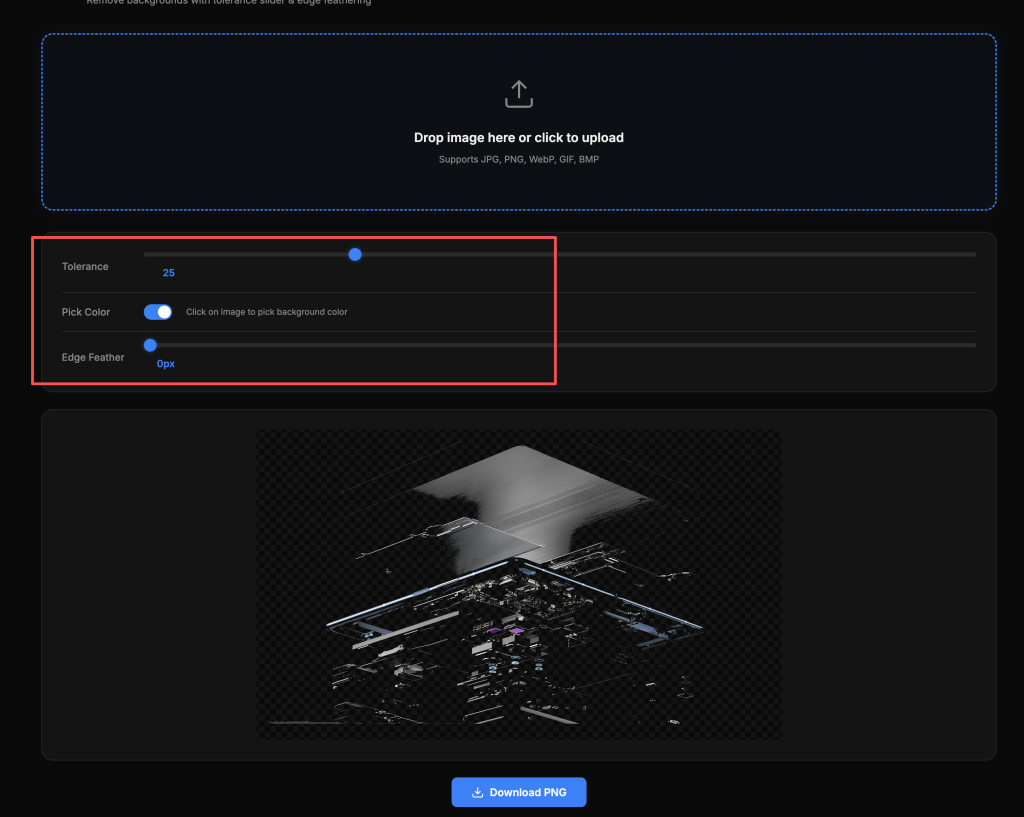
Click on the background area of your image. The tool samples the color at that point and removes all similar pixels. This works best when the background is a distinct, uniform color (white, blue screen, solid wall, etc.).
Step 4: Adjust the Tolerance
The Tolerance slider controls how much color variation gets removed:
| Tolerance | Effect | When to Use |
|---|---|---|
| 10–20 | Removes only very close color matches | High-contrast background, precise edges |
| 30–40 | Moderate range (default) | Most standard photos |
| 50–70 | Removes a wide range of similar colors | Low-contrast background, gradient backgrounds |
| 80–100 | Very aggressive, may eat into subject | Last resort for difficult backgrounds |
Start at 30 and increase gradually. Going too high removes parts of your subject.
Step 5: Adjust Edge Feathering
Edge Feather softens the cutout edge so it doesn’t look harsh and jagged:
- 0px — Hard edge, pixel-precise cutout. Good for graphics and sharp objects
- 1–2px — Slight softening. Good for most product photos
- 3–5px — Smooth blend. Good for people and organic shapes that need to look natural on new backgrounds
Step 6: Download the Result
Click “Download PNG.” The output is a PNG with transparency — everything runs locally in your browser.
What Kind of Backgrounds Work Best?
表格
| Background Type | Removal Quality | Tips |
|---|---|---|
| Solid white / solid color | Excellent | One click, tolerance 20–30 |
| Blue/green screen | Excellent | Classic chroma key, tolerance 30–40 |
| Light gradient | Good | Increase tolerance, may need two picks |
| Busy/complex | Fair to poor | This tool uses color matching, not AI segmentation |
| Semi-transparent (glass, sheer) | Poor | Color-based tools struggle with transparency |
For complex backgrounds (outdoor scenes, crowds, overlapping objects), an AI-based background remover would give better results. This tool shines on solid or near-solid backgrounds.
FAQ
Does this use AI to detect the subject?
No — it’s a color-based removal tool. You pick the background color, and it removes all similar pixels based on the tolerance setting. This makes it fast and predictable, but it works best on solid or near-solid backgrounds.
Can I remove multiple colors?
Click different areas to pick different background colors. Each pick removes that color range. For backgrounds with two distinct areas (e.g., blue sky + green grass), click each one separately.
Why are there rough edges on my cutout?
Increase the Edge Feather setting (1–5px) to soften the transition. Also check that your tolerance isn’t too low — some background pixels near the subject may not be getting removed.
Can I replace the background with a different color?
This tool outputs a transparent PNG. To add a new background color, merge the transparent PNG with a solid-color image using the Image Merge tool.
Does it work on photos of people?
It depends on the background. A portrait against a white wall or blue screen? Works great. A person in a busy outdoor scene? The color-based approach may struggle to separate hair and fine details from a complex background.
Is my photo uploaded to a server?
No. All processing happens in your browser. Your images never leave your device.
More image tools from ImgNeo: Add Watermark · Convert Formats · Image Filters · Add Text to Image · Crop Images