Want to protect your photos from unauthorized use? ImgNeo Watermark lets you add text or image watermarks with full control over position, opacity, and style — right in your browser, no signup, no software.

Why Watermark Your Images?
If you share photos online — portfolio, product shots, social media — they can be saved and reused without credit. A watermark makes it clear who owns the image. It doesn’t prevent copying, but it makes unauthorized use obvious and less attractive.
How to Add a Watermark to Your Image
Step 1: Open the Watermark Tool
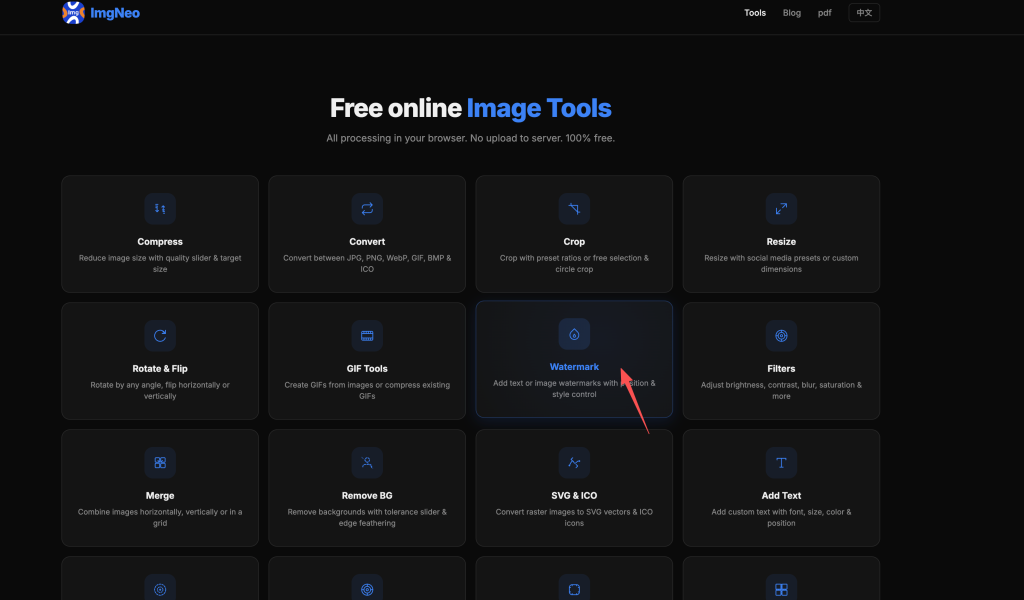
Go to imgneo.com/watermark. No account needed.
Step 2: Upload Your Image
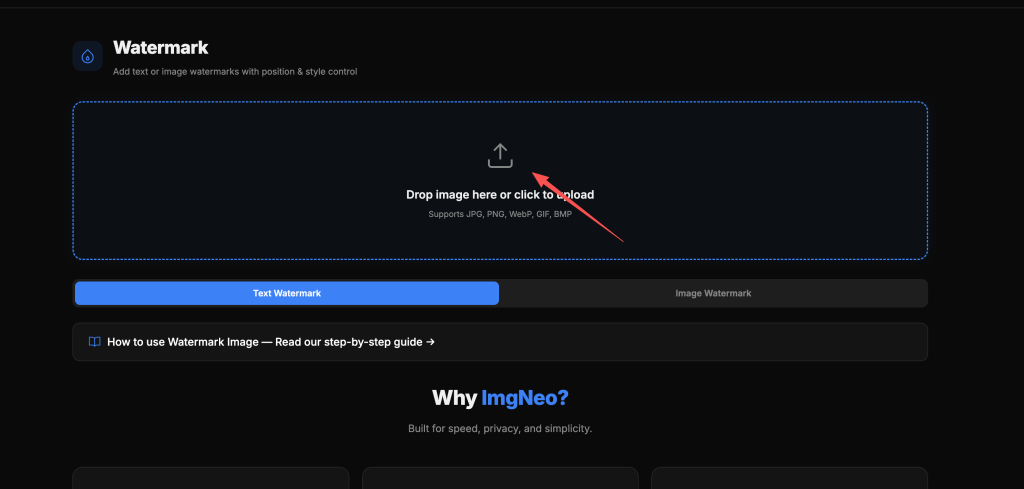
Drag and drop your photo, or click to browse. Supports JPG, PNG, WebP, GIF, BMP.
Step 3: Choose Watermark Type
Switch between Text Watermark and Image Watermark tabs.
Text Watermark
Type your watermark text (name, brand, URL, “© 2026”) and customize:
表格
| Setting | What It Does | Recommended |
|---|---|---|
| Font | Arial, Verdana, Impact, Georgia | Impact for bold visibility |
| Size | Font size in pixels | 36–64 for standard photos |
| Color | Text color | White or light gray for dark photos, dark for light |
| Opacity | How transparent the text appears | 30–50% — visible but not distracting |
| Position | Where the watermark appears | Center or bottom-right are common |
| Rotation | Angle of the text | 30–45° diagonal is hard to crop out |

Image Watermark
Upload a logo or signature image and customize:
表格
| Setting | What It Does | Recommended |
|---|---|---|
| Opacity | Transparency of the watermark image | 30–50% — subtle but visible |
| Scale | Size relative to the original image | 20–40% for logos |
| Position | Placement on the image | Center or bottom-right |

Step 4: Apply and Download
Click “Watermark” (text) or “Download” (image). The watermarked photo saves to your device — everything runs locally in your browser.
Watermark Placement Strategies
Diagonal center — Hardest to crop out. Set rotation to 30–45° and position in the center. Good for portfolio images you really want to protect.
Bottom-right corner — Standard and unobtrusive. Doesn’t interfere with the main subject. Common for social media and product photos.
Tiled / Repeated — Most protective but most intrusive. Some tools support repeating the watermark across the entire image. If yours doesn’t, you can apply multiple watermarks manually.
Low-opacity full signature — A compromise: place a large, very low-opacity (15–25%) watermark across the center. Barely visible at a glance but impossible to remove cleanly.
FAQ
Does watermarking reduce image quality?
No. The watermark is composited onto the image without additional compression artifacts beyond the normal save. PNG output is lossless.
Can someone remove my watermark?
Technically yes — with effort and tools. A watermark makes it harder and more obvious that the image was taken without permission. The harder your watermark is to crop or clone out (diagonal, center, low opacity), the more effective it is.
Should I use text or image watermark?
Text — Quick, flexible, no extra file needed. Good for names, URLs, copyright notices.
Image (logo) — More professional and branded. Better for businesses and portfolios.
Many photographers use both: a small logo watermark for branding + a text copyright notice.
What opacity should I use?
30–50% is the sweet spot for most uses. Below 20% and the watermark becomes invisible. Above 60% and it distracts from the image. For maximum protection, go 40–50%. For subtle branding, 20–30%.
Can I watermark multiple images at once?
Currently one at a time. For batch watermarking, you’d need to run each image through — the process is fast enough for small batches.
More image tools from ImgNeo: Compress Images · Remove Background · Add Text to Image · Convert Formats · Image Filters