Need to make an image bigger or smaller? ImgNeo Image Resizer changes photo dimensions in seconds — right in your browser, no signup, no software.
Why Resize an Image?
Different platforms and uses need different sizes. An email attachment should be small. A website hero needs a specific width. A print job requires exact DPI. Resizing adjusts the pixel dimensions to match whatever you need — without cropping away content.
How to Resize an Image Online
Step 1: Open the Image Resizer
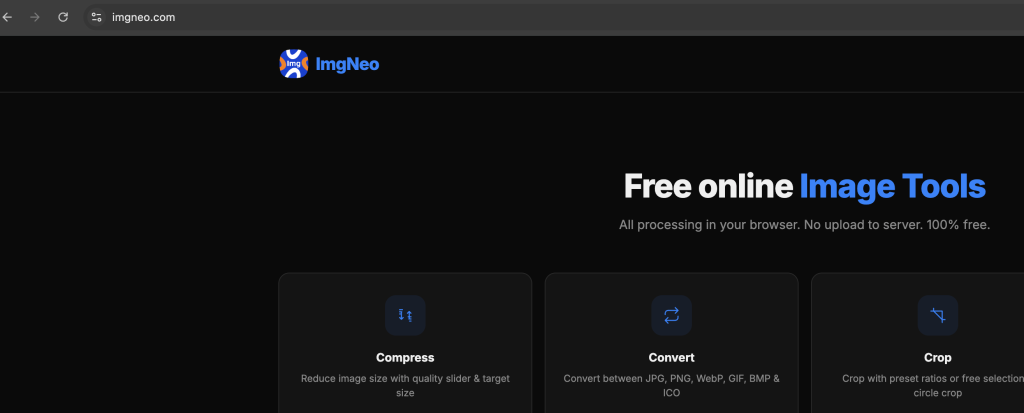
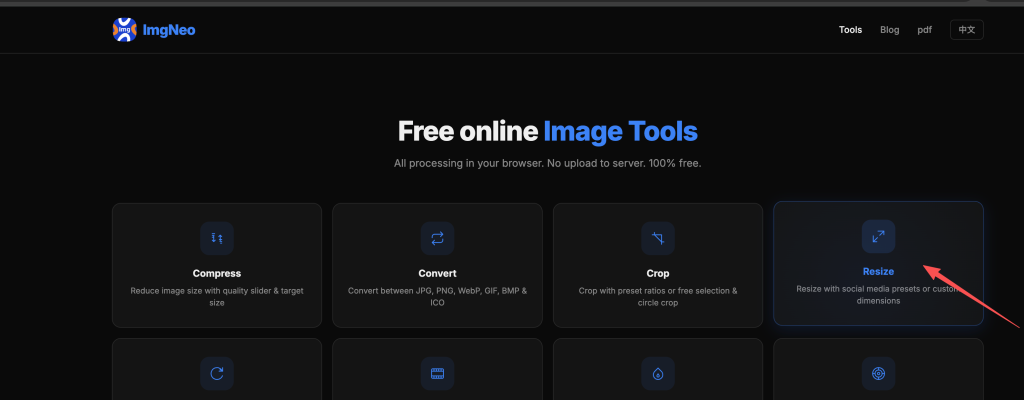
Go to imgneo.com/resize. The tool loads instantly — no account required.
Step 2: Upload Your Image
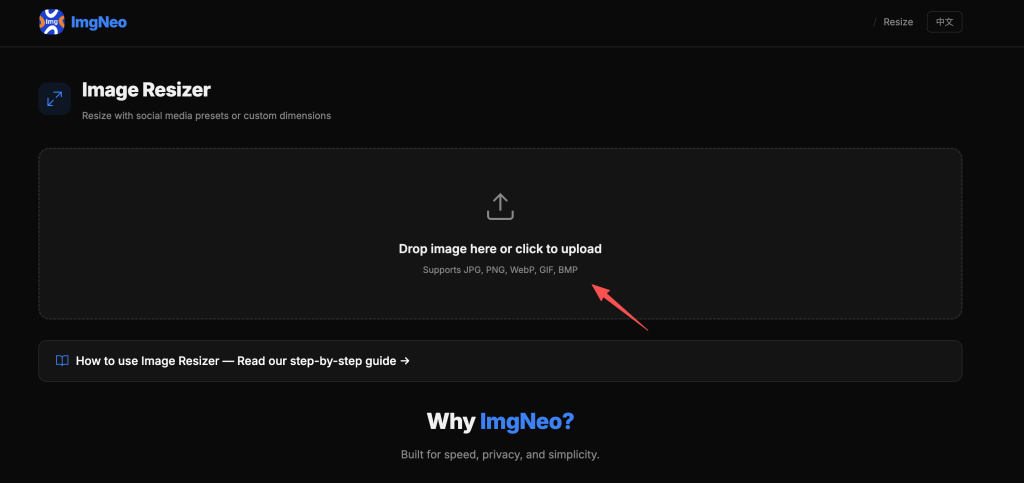
Drag and drop your photo, or click to browse. Supports PNG, JPG, WebP, BMP, and more.
Step 3: Set the New Dimensions
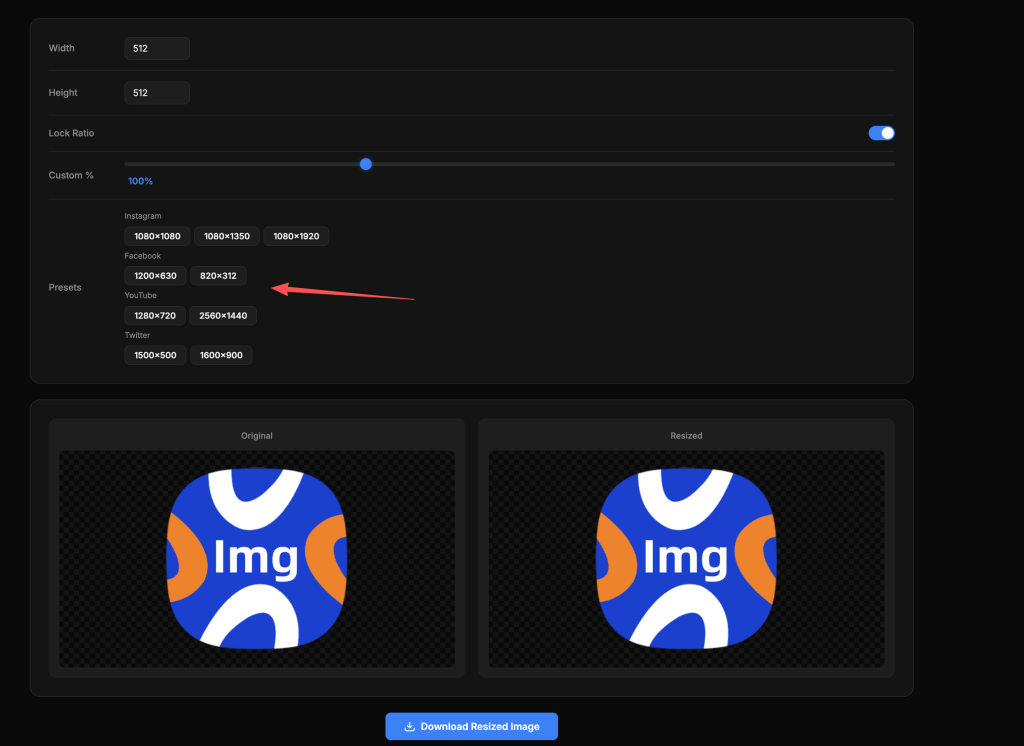
Enter your target width and/or height in pixels. The lock icon keeps the aspect ratio locked by default — changing one dimension auto-calculates the other so your image won’t stretch or distort.
Common size targets:
表格
| Use Case | Width (px) | Notes |
|---|---|---|
| Web hero image | 1920 | Full-width banner |
| Blog featured image | 1200 | Standard blog width |
| Email attachment | 600–800 | Keeps file size small |
| Instagram post | 1080 × 1080 | Square |
| YouTube thumbnail | 1280 × 720 | 16:9 required |
| Facebook cover | 820 × 312 | Official spec |
| LinkedIn post | 1200 × 627 | 1.91:1 ratio |
| Print at 300 DPI | Depends on size | See FAQ below |
Step 4: Adjust Resize Method (Optional)
Choose how the resizing handles your image:
- Stretch — Forces the new dimensions, ignores aspect ratio (will distort)
- Fit — Scales to fit within the new dimensions, adds letterboxing if needed
- Fill — Scales to cover the new dimensions, may crop edges
Stick with the default (locked aspect ratio) unless you have a specific reason.
Step 5: Download the Resized Image
Click download. The resized file saves to your device — everything runs locally in your browser.
Resize vs. Crop — What’s the Difference?
Resizing scales the entire image — all content stays, pixel dimensions change. A 4000px photo resized to 1000px still shows everything, just smaller.
Cropping cuts away parts — you keep a smaller area at full resolution. A 4000px photo cropped to 1000px shows only the selected region.
Usually you crop first (tighten composition), then resize (fit the target dimensions).
FAQ
Does resizing reduce quality?
Downsizing (making smaller) is generally fine — you’re condensing more pixels into fewer, which can even look sharper. Upsizing (making larger) will look blurry or pixelated because you’re inventing pixels that weren’t there. Try to avoid scaling up more than 150%.
How do I calculate pixels for print?
Multiply inches by DPI. For example, a 4×6 inch print at 300 DPI needs 1200 × 1800 pixels. At 150 DPI (acceptable for large posters viewed from a distance), it only needs 600 × 900 pixels.
表格
| Print Size | 300 DPI | 150 DPI |
|---|---|---|
| 4×6″ | 1200 × 1800 | 600 × 900 |
| 5×7″ | 1500 × 2100 | 750 × 1050 |
| 8×10″ | 2400 × 3000 | 1200 × 1500 |
| 11×14″ | 3300 × 4200 | 1650 × 2100 |
Can I resize multiple images at once?
Currently one at a time. For batch resizing, run each image through — it’s fast enough for most needs.
Will the file size change when I resize?
Yes — smaller dimensions mean fewer pixels, which usually means a smaller file. A 4000px photo resized to 1000px can be 80–90% smaller in file size.
Is there a file size limit?
No hard limit. Very large images (50 MB+) may take a moment but will process fine in your browser.
More image tools from ImgNeo: Compress Images · Crop Images · Convert Formats · Rotate & Flip · Remove Background