Need to create a GIF from images, shrink an existing one, or turn a video clip into a GIF? ImgNeo GIF Tools does all three — right in your browser, no signup, no software.
Why Use an Online GIF Tool?
GIFs are everywhere — social media, chats, presentations, tutorials. But making them usually means downloading desktop software or dealing with watermarked online tools. ImgNeo GIF Tools runs entirely in your browser: create, compress, or convert, then download. Nothing uploads to a server.
Three GIF Tools in One Page
Create GIF from Images
Turn a sequence of images (JPG, PNG, WebP) into an animated GIF.
How to do it:
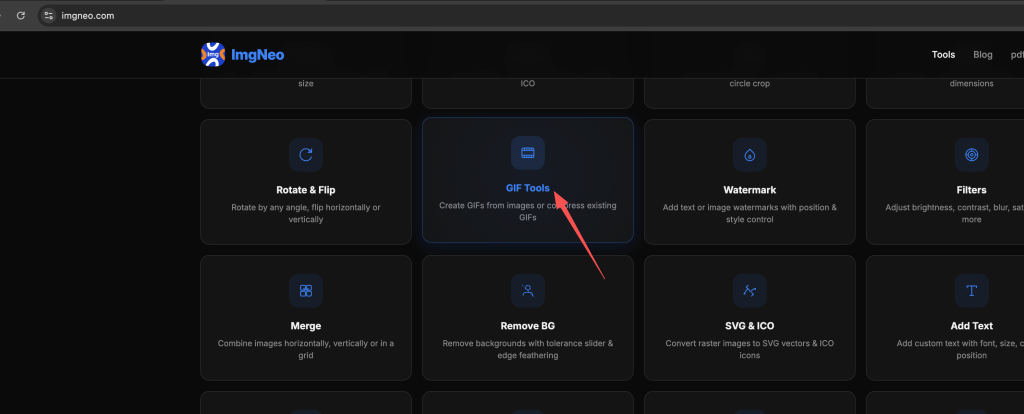
- Open imgneo.com/gif-tools — the “Create GIF” tab is active by default
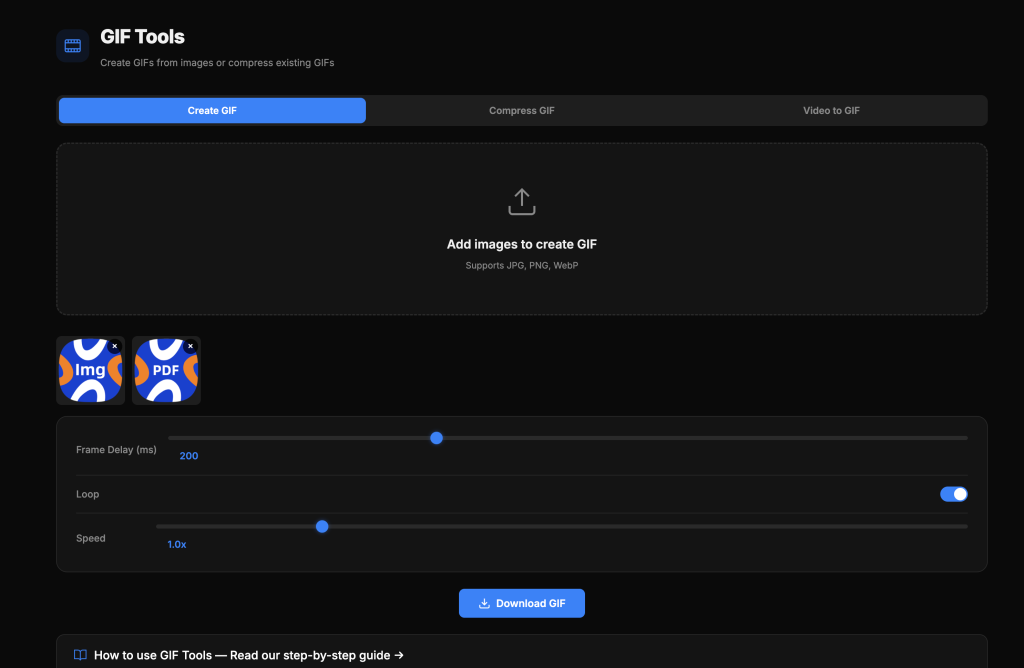
- Drop your images onto the upload area (or click to browse). Supports JPG, PNG, WebP
- Adjust settings:
- Frame Delay — How long each frame displays (ms). 200ms = 5 frames/sec. Lower = faster animation
- Loop — Number of loops (0 = infinite)
- Speed — Playback multiplier (1.0x = normal)
- Click “Download GIF”
Tips for smooth GIFs:
- Use 100–200ms frame delay for natural motion
- Keep image dimensions consistent across frames
- Fewer frames = smaller file. 10–20 frames is usually enough for a short loop
Compress GIF
Reduce an existing GIF’s file size without losing too much quality.
How to do it:
- Switch to the “Compress GIF” tab
- Drop your GIF onto the upload area
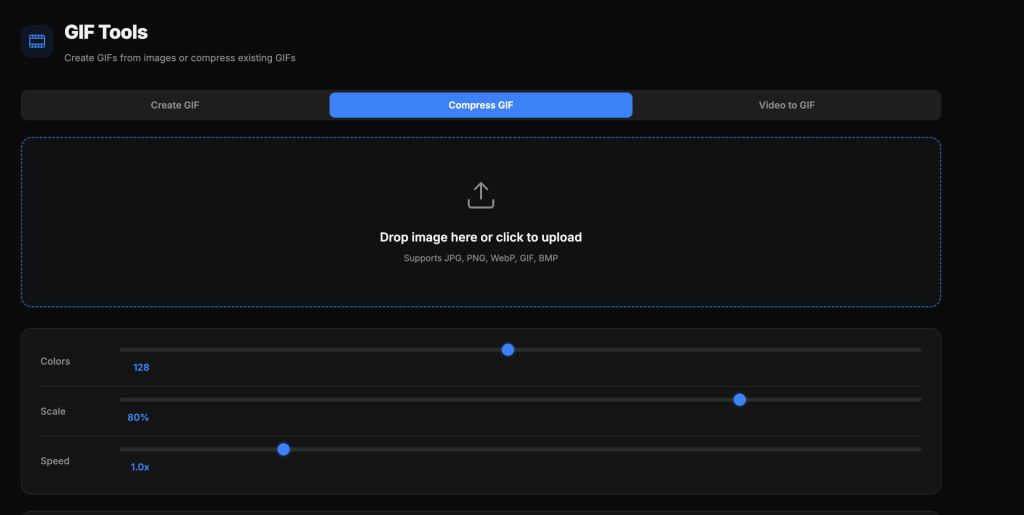
- Adjust compression settings:
- Colors — Number of colors in the palette. 128 is a good balance; drop to 64 for smaller files
- Scale — Resize percentage. 80% barely looks different but cuts file size significantly
- Speed — Playback speed multiplier
- Click “Download GIF”
Compression cheat sheet:
表格
| Setting | Small File | Balanced | Best Quality |
|---|---|---|---|
| Colors | 64 | 128 | 256 |
| Scale | 60% | 80% | 100% |
| Typical size reduction | 70–80% | 40–60% | 20–30% |
Video to GIF
Convert a video clip (MP4, WebM, AVI, MOV) into a GIF.
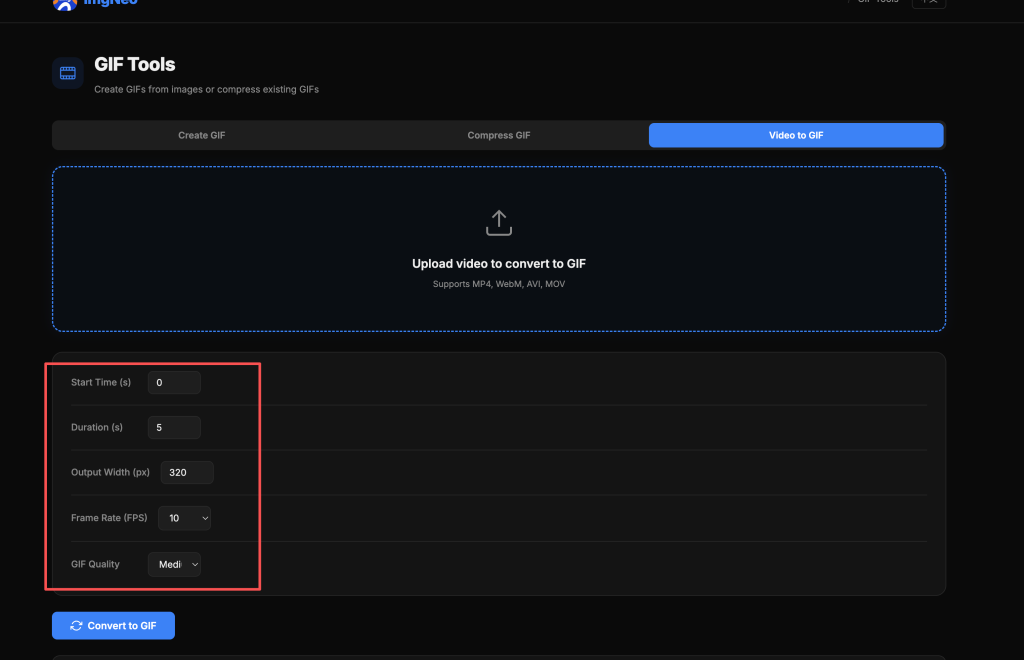
How to do it:
- Switch to the “Video to GIF” tab
- Drop your video file onto the upload area
- Set the clip range:
- Start Time — Where the GIF begins (seconds)
- Duration — How long the GIF runs (seconds)
- Adjust output settings:
- Output Width — Pixel width (smaller = smaller file)
- Frame Rate (FPS) — 10 fps is smooth enough for most GIFs; 15 for fast motion
- GIF Quality — Low / Medium / High
- Click “Convert to GIF”
Tips for video-to-GIF:
- Keep duration under 5 seconds for social media
- Use 320–480px width for chat/Discord GIFs
- 10 FPS is enough for most content — every extra frame adds file size
FAQ
What’s the maximum file size I can upload?
No hard limit. Since processing happens in your browser, very large files (100 MB+) may take longer but will still work. For best results, keep video clips under 30 seconds.
Why is my GIF file size so large?
GIF is an old format — it doesn’t compress well compared to modern video. To reduce size: lower the color count (try 64–128), reduce dimensions (scale to 80%), cut the duration, and drop the frame rate. Combining all four can shrink a GIF by 80%+.
Can I add text to my GIF?
The current tool focuses on creation, compression, and conversion. For adding text overlays, you’d need a separate editing step.
Does the quality drop when compressing?
Yes, some quality loss is inevitable — fewer colors and smaller dimensions mean less detail. But the compression settings give you control: start with “Balanced” and adjust if the file is still too large or the quality isn’t good enough.
Is my data private?
Completely. Everything runs in your browser using JavaScript. Your images and videos never leave your device.
More image tools from ImgNeo: Compress Images · Resize Images · Convert Formats · Add Watermark · Image Filters