Need to put two or more images next to each other? ImgNeo Image Merge combines images horizontally, vertically, or in a grid — right in your browser, no signup, no software.
Why Merge Images?
Before-and-after comparisons, photo collages, side-by-side product shots, contact sheets, panorama stitching — anytime you need multiple images in a single frame, merging is the quickest way.
How to Merge Images Online
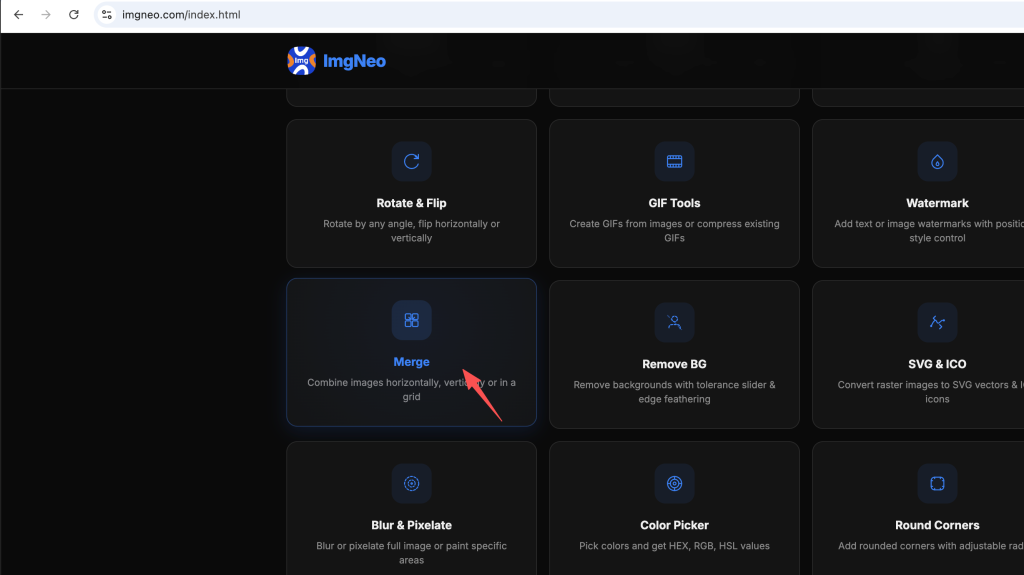
Step 1: Open the Image Merge Tool
Go to imgneo.com/merge. No account needed.
Step 2: Upload Your Images
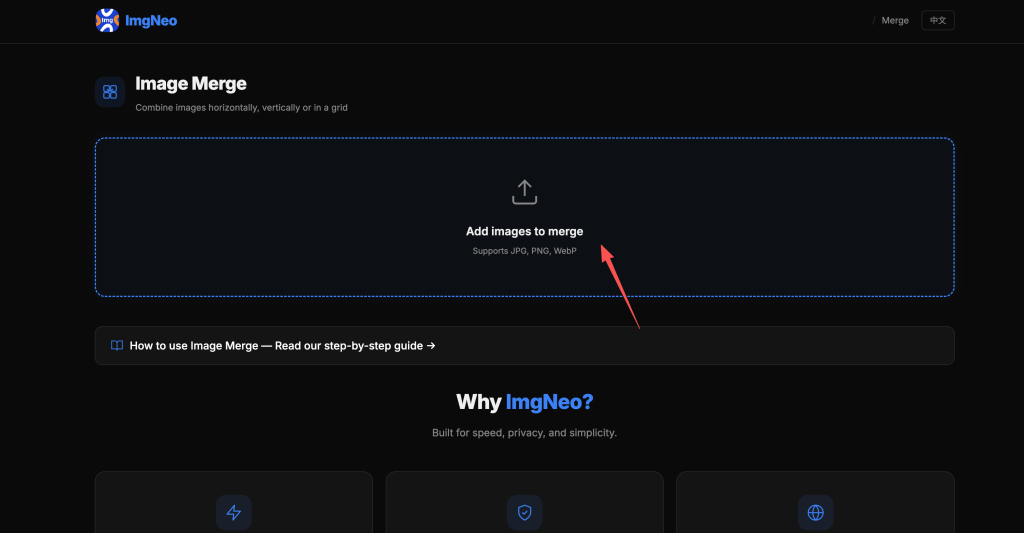
Drag and drop multiple images onto the page, or click to browse. Supports JPG, PNG, WebP. Add as many images as you need — the order you add them determines the layout order.
Step 3: Choose the Merge Layout
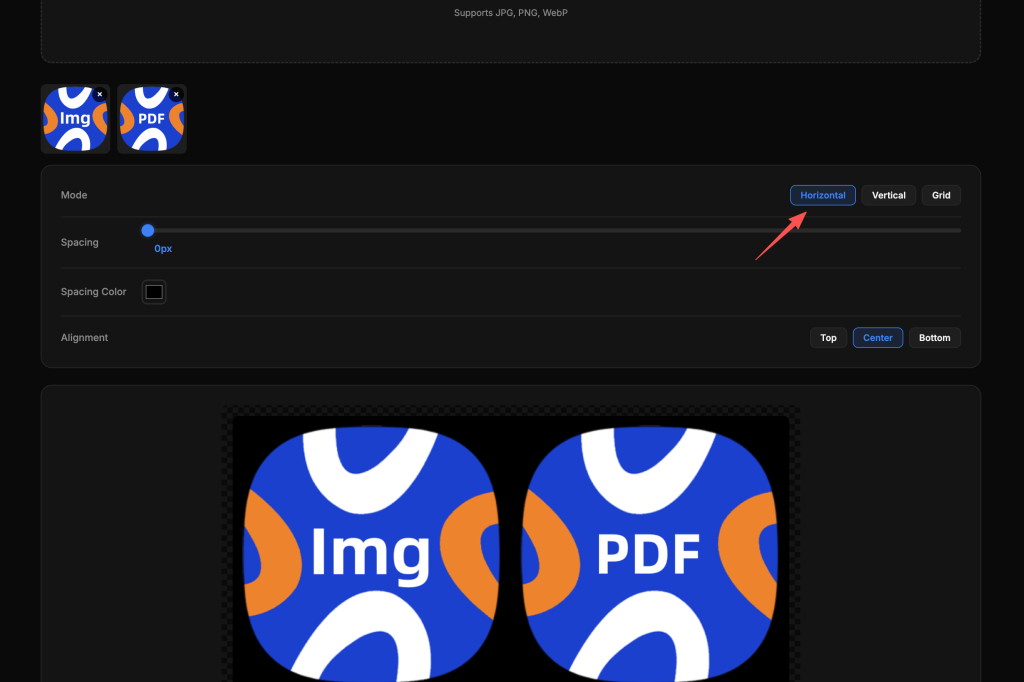
Pick one of three layout modes:
| Layout | How It Arranges Images | Best For |
|---|---|---|
| Horizontal | Images side by side in a row | Before/after, wide comparisons |
| Vertical | Images stacked top to bottom | Steps in a tutorial, tall comparisons |
| Grid | Images in rows and columns | Photo collages, product grids |
Step 4: Download the Merged Image
Click “Download Merged Image.” The combined file saves to your device — everything runs locally in your browser.
Common Merge Scenarios
Before-and-after comparison — Use horizontal layout with two images. The left-right split is the standard format for edits, renovations, filters, and treatments.
Tutorial step-by-step — Vertical layout with 3–5 images showing each step. One long image is easier to share than multiple separate files.
Product photo grid — Grid layout with 4–9 product shots. Common for e-commerce listings and social media carousels.
Side-by-side comparison — Horizontal layout for comparing two versions (e.g., two design options, two phones, two outfits).
Contact sheet / proof sheet — Grid layout with many small images. Photographers use these to review shoots; designers use them for asset overviews.
Tips for Clean Merges
- Match dimensions first — If your images have very different sizes, resize them to the same width (for horizontal) or same height (for vertical) before merging. Otherwise the layout will have awkward gaps or misalignments.
- Consistent spacing — The tool handles spacing automatically. If you need custom gaps, consider adding white borders to your images first.
- File format — Merged output is a single image file. If any input has transparency (PNG), the output preserves it. For photos, JPG is fine. For graphics with transparency, use PNG.
FAQ
How many images can I merge at once?
No hard limit. The tool handles as many as you add. For practical purposes, 2–12 images is the typical range. Very large numbers of high-resolution images may slow down the browser.
Can I adjust the spacing between images?
The tool uses consistent automatic spacing. For custom gaps or borders, you can add padding to individual images using the resize or watermark tool before merging.
Can I rearrange the order after uploading?
The merge order follows the upload order. If you need a different arrangement, re-upload the images in the desired sequence.
What resolution is the output?
The merged image keeps the full resolution of the originals. For horizontal merges, the output width is the sum of all image widths. For vertical merges, the output height is the sum of all image heights. Grid layout calculates dimensions automatically.
Does it work with different-sized images?
Yes, but the result may have gaps or misalignments if sizes vary wildly. For the cleanest result, resize images to consistent dimensions before merging.
More image tools from ImgNeo: Split Image · Resize Images · Crop Images · Add Watermark · Convert Formats