Saw a color you like in a photo and need the exact code? ImgNeo Color Picker lets you click any pixel to get HEX, RGB, and HSL values — right in your browser, no signup, no software.
Why Pick Colors from Images?
Matching a brand color from a screenshot. Replicating a color scheme you found online. Getting the exact shade for your CSS. Designers, developers, and content creators constantly need to extract precise color values from existing images — and guessing doesn’t cut it.
How to Pick Colors from an Image
Step 1: Open the Color Picker
Go to imgneo.com/color-picker. No account needed.
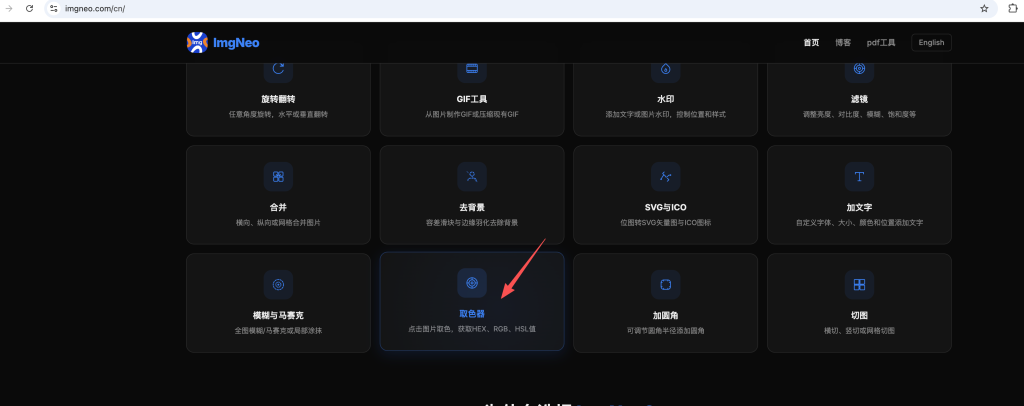
Step 2: Upload Your Image
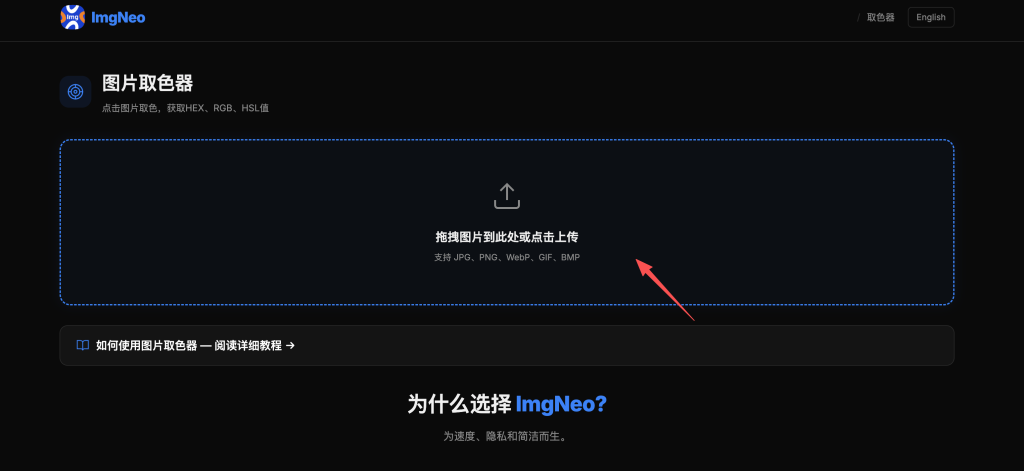
Drag and drop your photo, or click to browse. Supports JPG, PNG, WebP, GIF, BMP.
Step 3: Click to Pick a Color
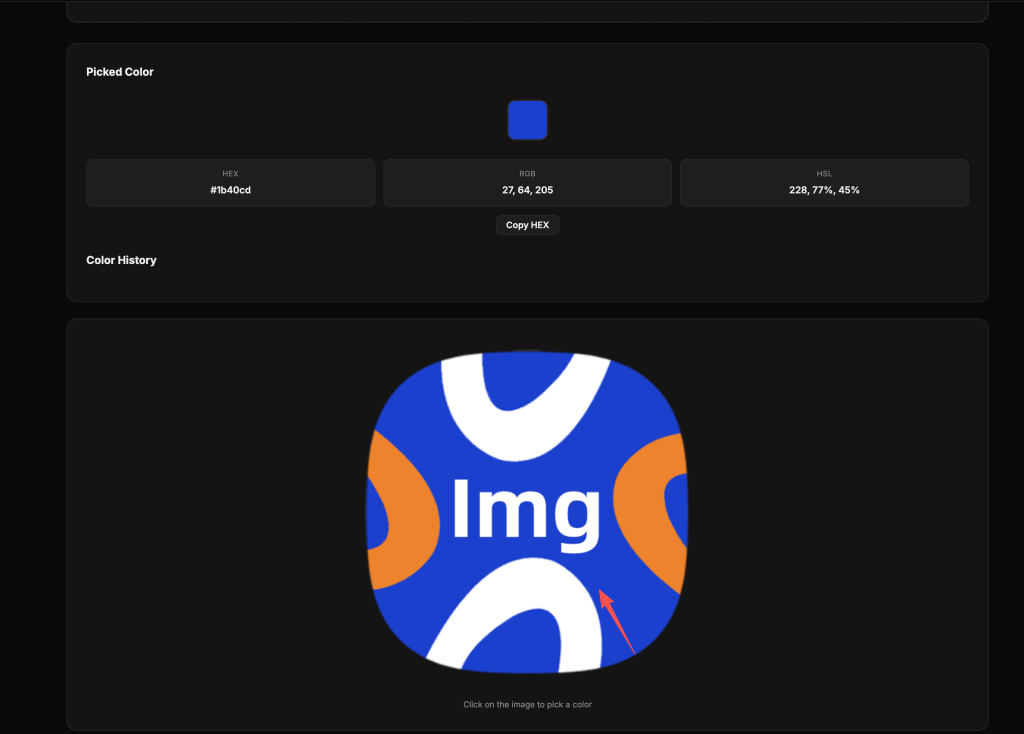
Click anywhere on the image. The tool samples the exact pixel color at that point and displays it in three formats simultaneously:
| Format | Example | Where You Use It |
|---|---|---|
| HEX | #3b82f6 | CSS, HTML, design tools, most web platforms |
| RGB | 59, 130, 246 | CSS rgb(), image processing, programming |
| HSL | 217°, 91%, 60% | CSS hsl(), adjusting hue/saturation/lightness |
Step 4: Copy the Color Value
Click on any format to copy it to your clipboard. Paste it directly into your CSS, design tool, or code.
Step 5: Build a Palette
Each color you pick is saved in the Color History panel. Pick multiple colors from the same image to build a palette — useful for extracting complete color schemes from reference images.
Understanding Color Formats
HEX
Six-character hex code (e.g., #3b82f6). The most widely used format on the web. Every CSS property that takes a color accepts HEX. Shorthand: if both characters of each pair match (e.g., #3366ff), you can write #36f.
RGB
Three numbers from 0–255 representing red, green, and blue channels. Used in CSS as rgb(59, 130, 246) or rgba(59, 130, 246, 0.8) for transparency. More intuitive for programming — you can mathematically adjust individual channels.
HSL
Three values: Hue (0–360°), Saturation (0–100%), and Lightness (0–100%). The most human-readable format. Want a lighter version of a color? Increase the L value. Want it less vivid? Decrease S. HSL is the easiest format for creating color variations.
Common Use Cases
Match a brand color — Upload a logo or brand asset, click the key color, copy the HEX value. Use it in your CSS, presentations, or social media templates.
Extract a color scheme from a reference — Pick 4–6 colors from a photo you like (a landscape, an interior, a painting). Use them as your project palette.
Get exact colors for code — No more eyeballing or screenshotting color pickers. Click, copy, paste the exact value.
Find complementary colors — Pick a base color, note its HSL hue value, then add/subtract 180° for the complement, 120° for triadic, 30° for analogous.
Replicate a website’s color — Screenshot the site, upload, and pick the exact colors used.
FAQ
How accurate is the color picking?
Pixel-perfect. The tool reads the exact RGB values of the pixel you click. The only source of inaccuracy would be your display’s color calibration — the values themselves are mathematically precise.
Can I pick multiple colors?
Yes. Each click adds a color to the Color History. Pick as many as you need to build a full palette from the image.
Why does the color look different from what I see on screen?
If you’re viewing the image on a calibrated display and then using the color on an uncalibrated one, it may look different. The color values are correct — the display is the variable. Also, browser color management can shift colors slightly for images with embedded ICC profiles.
Can I paste a HEX code to find it in the image?
Not currently. The tool works by clicking on the image to extract colors, not by searching for a specific color within the image.
What’s the difference between HEX and RGB?
They represent the same color in different ways. #3b82f6 (HEX) = rgb(59, 130, 246) (RGB). HEX is just the RGB values written in hexadecimal. Both are equally precise — HEX is more compact, RGB is more readable in code.
Is my image uploaded to a server?
No. All processing happens in your browser. Your images never leave your device.
More image tools from ImgNeo: Image Filters · Remove Background · Convert Formats · Add Text to Image · Blur & Pixelate