Need a scalable vector version of a logo, or a favicon for your website? ImgNeo SVG & ICO Converter turns raster images (PNG, JPG) into SVG vectors and ICO icons — right in your browser, no signup, no software.
Why Convert to SVG or ICO?
SVG (Scalable Vector Graphics) — Scales to any size without losing quality. Perfect for logos, icons, and illustrations that need to look sharp on everything from mobile screens to billboards. SVG files are also smaller than high-res PNGs for simple graphics, and they’re editable in code.
ICO (Icon File) — The standard format for website favicons (the tiny icon in browser tabs). An ICO file bundles multiple sizes (16×16, 32×32, 48×48, 256×256) into one file so browsers can pick the right resolution.
How to Convert Images to SVG and ICO
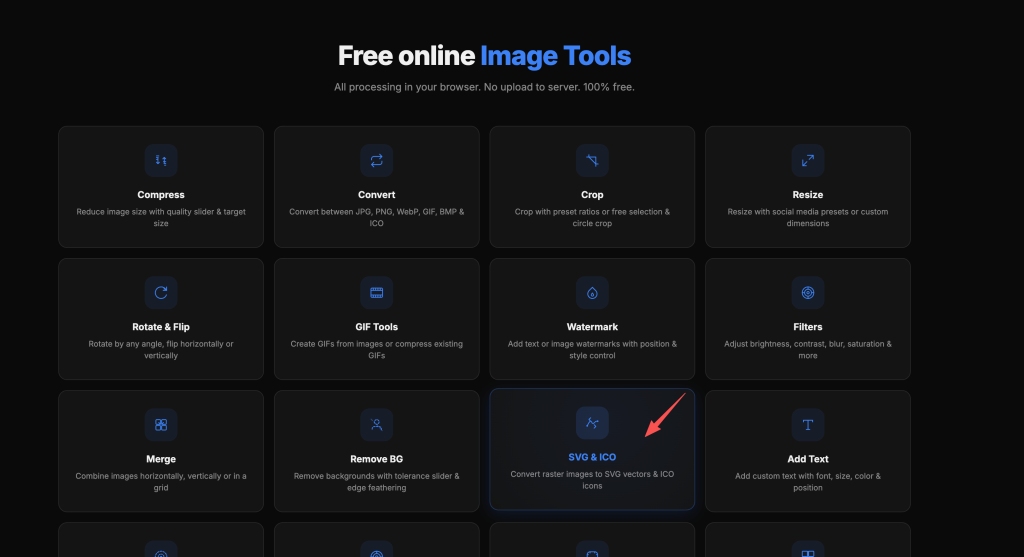
Step 1: Open the SVG & ICO Converter
Go to imgneo.com/image-to-svg. No account needed.
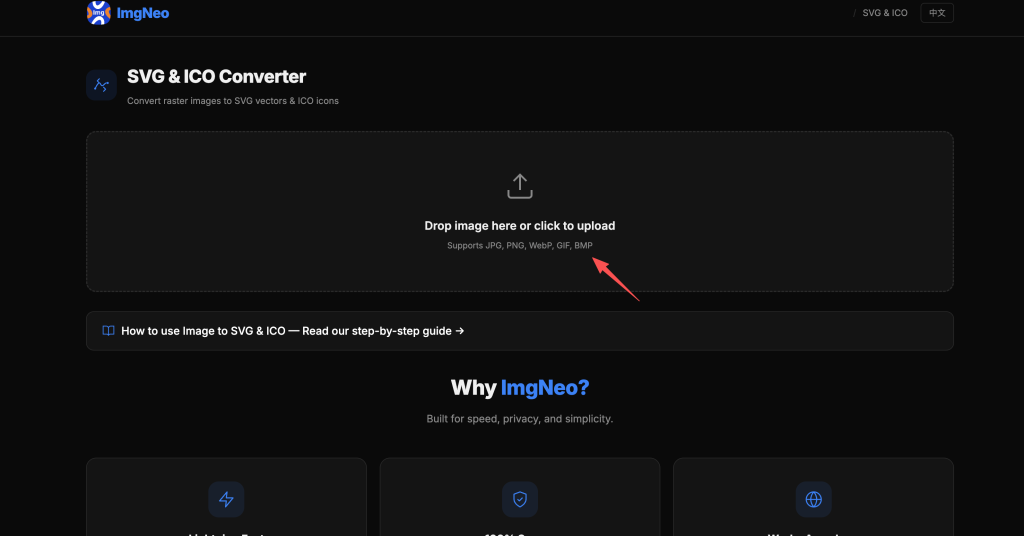
Step 2: Upload Your Image
Drag and drop your image, or click to browse. Supports JPG, PNG, WebP, GIF, BMP. Works best with simple graphics — logos, icons, line art, silhouettes.
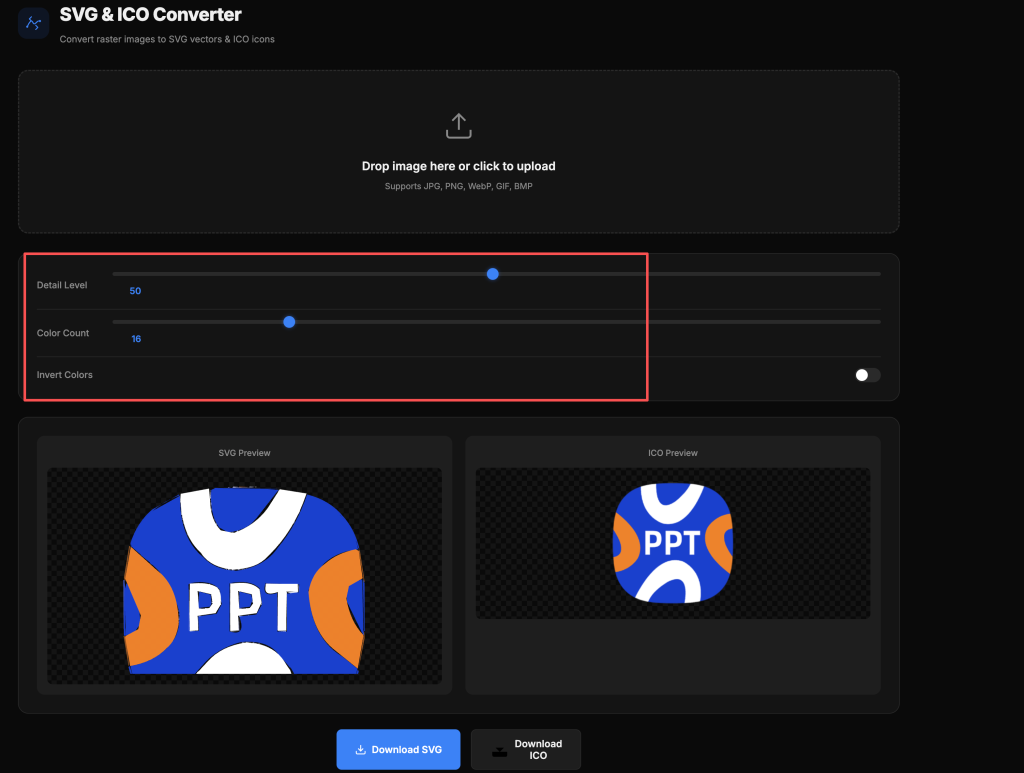
Step 3: Adjust Conversion Settings
表格
| Setting | What It Does | Recommended |
|---|---|---|
| Detail Level | How much detail the SVG traces | 50 is balanced; increase for complex images, decrease for cleaner output |
| Color Count | Number of colors in the SVG | 8–16 for logos; 2–4 for simple icons; 32+ for detailed illustrations |
| Invert Colors | Swaps light and dark | Useful when you need a light-on-dark version |
Tips for better results:
- Start with a high-contrast, simple image. Logos and icons trace well. Photos do not.
- Lower color count = cleaner SVG. Higher color count = more faithful but larger file.
- For a single-color logo, use 2 colors (subject + background).
Step 4: Preview and Download
SVG and ICO previews appear side by side. Check the SVG preview for unwanted artifacts, then download either or both.
- Download SVG — For web graphics, print, or editing
- Download ICO — For website favicons
What Makes a Good SVG Conversion?
表格
| Input Type | SVG Quality | Tips |
|---|---|---|
| Logo (flat, few colors) | Excellent | Low color count (2–8), detail 40–60 |
| Icon / symbol | Excellent | 2–4 colors, detail 30–50 |
| Line art / silhouette | Great | 2 colors, detail 40–60 |
| Simple illustration | Good | 8–16 colors, detail 50–70 |
| Photo / complex image | Poor | Raster-to-vector doesn’t work well on photos; results are large and messy |
| Screenshot with text | Fair | Text may not trace cleanly; consider recreating instead |
The golden rule: Simple inputs make clean SVGs. Complex inputs make messy SVGs. SVG is not a magic “enhance” button — it traces what’s there.
Using Your ICO File as a Favicon
After downloading the ICO file:
- Upload
favicon.icoto your website’s root directory - Add this line inside your HTML
<head>:
html
1
2
<linkrel=”icon”type=”image/x-icon”href=”/favicon.ico”>
- Clear browser cache and reload — the new icon appears in the tab
FAQ
Can I convert a photo to SVG?
Technically yes, but the result won’t be great. SVG tracing works by detecting color boundaries — photos have thousands of subtle boundaries, producing huge, messy SVG files. For photos, stick with raster formats (JPG, PNG, WebP).
What’s the difference between SVG and PNG?
PNG is a raster format — it’s made of pixels. Zoom in and it gets blurry. SVG is a vector format — it’s made of math. Zoom in and it stays sharp forever. SVG is better for logos and icons; PNG is better for photos and screenshots.
How do I edit the SVG after downloading?
Open the SVG file in any vector editor (Figma, Illustrator, Inkscape) or even a text editor — SVG is XML, so you can tweak colors and paths directly in code.
Why does my SVG look different from the original?
The tracing process simplifies edges and reduces colors. Lowering detail level or increasing color count makes the output more faithful but produces a larger file. Adjust the settings and re-convert until it looks right.
What sizes are in the ICO file?
The ICO output includes multiple standard sizes (16×16, 32×32, 48×48, 256×256) so browsers can pick the right one for tabs, taskbars, and desktop shortcuts.
Is my image uploaded to a server?
No. All processing happens in your browser. Your images never leave your device.
More image tools from ImgNeo: Format Converter · Remove Background · Add Watermark · Image Filters · Crop Images